> ## Documentation Index
> Fetch the complete documentation index at: https://docs.makeswift.com/llms.txt
> Use this file to discover all available pages before exploring further.
# Pages Router
The fastest way to get started with Makeswift on a new Next.js project is to follow the
[quickstart](/developer/quickstart) guide. If you have an existing Next.js application
or want to set things up yourself, continue with the rest of this guide.
## System requirements
* [Node.js 20.19](https://nodejs.org/en) or a later version.
* macOS, Windows (including WSL), and Linux are supported.
If you don't already have a Next.js project, head over to
the [Next.js](https://nextjs.org/docs/getting-started/installation)
documentation to get one set up. If you do have one, please verify you are
using [Next.js 13.4](https://nextjs.org/blog/next-12) or a later version.
This code in this guide assumes you are using a `src` directory and have the following path aliases configured.
```json tsconfig.json theme={null}
{
"compilerOptions": {
"baseUrl": ".",
"paths": {
"@/*": ["src/*"]
}
}
}
```
If your setup varies from this, please adjust the code snippets appropriately.
## Install dependencies
Install the `@makeswift/runtime` package. This package contains all of the necessary
code to integrate Makeswift into your Next.js app.
```bash theme={null}
npm install @makeswift/runtime
```
## Add API key to environment variables
Requesting data through the `Makeswift` client requires a site API key from Makeswift. In the Makeswift builder, go to **Settings > Host** and copy the API key for the site.
Once the API key is in your clipboard, open your [`.env.local`](https://nextjs.org/docs/pages/building-your-application/configuring/environment-variables) file and paste the snippet below.
```sh theme={null}
MAKESWIFT_SITE_API_KEY=paste-your-api-key-here
```
## Add Makeswift runtime
Create the Makeswift [runtime](/developer/reference/runtime/constructor) file in `src/makeswift`.
```ts src/makeswift/runtime.ts theme={null}
import { ReactRuntime } from "@makeswift/runtime/next";
export const runtime = new ReactRuntime();
```
## Add Makeswift client
Create the Makeswift [client](/developer/reference/client/constructor) file in `src/makeswift`.
```ts src/makeswift/client.ts theme={null}
import { Makeswift } from "@makeswift/runtime/next";
import { strict } from "assert";
import { runtime } from "./runtime";
strict(
process.env.MAKESWIFT_SITE_API_KEY,
"MAKESWIFT_SITE_API_KEY is required"
);
export const client = new Makeswift(process.env.MAKESWIFT_SITE_API_KEY, {
runtime,
});
```
## Add the Next.js plugin
Next.js plugins are configured in the project's next.config.js file by wrapping `nextConfig`. The Makeswift Next.js plugin whitelists Makeswift image domains and sets up rewrites to enable preview mode in the Makeswift builder.
```js next.config.ts theme={null}
import createWithMakeswift from "@makeswift/runtime/next/plugin";
const withMakeswift = createWithMakeswift();
/** @type {import('next').NextConfig} */
const nextConfig = {
// your existing next config
};
export default withMakeswift(nextConfig);
```
```js next.config.js theme={null}
const createWithMakeswift = require("@makeswift/runtime/next/plugin");
const withMakeswift = createWithMakeswift();
/** @type {import('next').NextConfig} */
const nextConfig = {
// your existing next config
};
export default withMakeswift(nextConfig);
```
## Set up a custom Document
The Makeswift [custom Document](https://nextjs.org/docs/pages/building-your-application/routing/custom-document) handles styles during server-side rendering and using [Preview Mode](https://nextjs.org/docs/pages/building-your-application/configuring/preview-mode) when opening your pages in the Makeswift builder.
Create the file `src/pages/_document.ts` and export `Document` from `@makeswift/runtime/next/document`:
```js src/pages/_document.tsx theme={null}
export { Document as default } from "@makeswift/runtime/next/document";
```
If you already have a `_document.ts`, you can extend the `Document` from `@makeswift/runtime/next/document` instead.
```tsx src/pages/_document.tsx theme={null}
import { Html, Head, Main, NextScript } from "next/document";
import { Document } from "@makeswift/runtime/next/document";
export default class MyDocument extends Document {
render() {
return (
{/* Your custom code here */}
);
}
}
```
## Register components with Makeswift
Create a file for registered components called `src/makeswift/components.tsx`. In this example, only one component is registered. However, as you register more components, we recommend creating separate files for each component and rolling up the imports in the `src/makeswift/components.ts` file. Learn more about [registering components](/developer/reference/runtime/register-component).
```tsx src/makeswift/components.tsx theme={null}
import { Style } from "@makeswift/runtime/controls";
import { runtime } from "./runtime";
function HelloWorld({ className }: { className: string }) {
return Hello, world!
;
}
runtime.registerComponent(HelloWorld, {
type: "hello-world",
label: "Custom / Hello, world!",
props: {
className: Style(),
},
});
```
To ensure these your components become available in Makeswift, this `components.tsx` file must be imported in three different places:
1. In the [custom app](#provide-the-runtime-to-custom-app)
2. In the [optional catch-all route](#add-a-route-for-makeswift-pages)
3. In the [Makeswift API Handler](#add-the-makeswift-api-handler)
You'll do this in the next few steps.
## Provide the runtime to Custom App
If you don't have a [Custom App](https://nextjs.org/docs/pages/building-your-application/routing/custom-app) you'll need to create one. Then wrap your Custom App with the Makeswift `ReactRuntimeProvider` component.
```tsx src/pages/_app.tsx theme={null}
import type { AppProps } from "next/app";
import { ReactRuntimeProvider } from "@makeswift/runtime/next";
import { runtime } from "@/makeswift/runtime";
import "@/makeswift/components";
export default function App({
Component,
pageProps: { siteVersion, ...pageProps },
}: AppProps) {
return (
);
}
```
## Add a route for Makeswift pages
Create an [optional catch-all route](https://nextjs.org/docs/pages/building-your-application/routing/dynamic-routes#optional-catch-all-segments) named `[[...path]].tsx`. You will use this route to fetch page snapshots from the `Makeswift` client and render them using the [`Page`](/developer/reference/components/page) component.
```tsx src/pages/[[...path]].tsx theme={null}
import {
GetStaticPathsResult,
GetStaticPropsContext,
GetStaticPropsResult,
} from "next";
import {
Page as MakeswiftPage,
PageProps as MakeswiftPageProps,
Makeswift,
type SiteVersion
} from "@makeswift/runtime/next";
import { client } from "@/makeswift/client";
import "@/makeswift/components";
type ParsedUrlQuery = { path?: string[] };
export async function getStaticPaths(): Promise<
GetStaticPathsResult
> {
const pages = await client.getPages().toArray();
return {
paths: pages.map((page) => ({
params: {
path: page.path.split("/").filter((segment) => segment !== ""),
},
})),
fallback: "blocking",
};
}
export type PageProps = MakeswiftPageProps & {
siteVersion: SiteVersion | null;
};
export async function getStaticProps({
params,
previewData,
}: GetStaticPropsContext): Promise<
GetStaticPropsResult
> {
const path = "/" + (params?.path ?? []).join("/");
const siteVersion = Makeswift.getSiteVersion(previewData);
const snapshot = await client.getPageSnapshot(path, {
siteVersion,
});
if (snapshot == null) return { notFound: true };
return {
props: {
snapshot,
siteVersion,
},
};
}
export default function Page({ snapshot }: MakeswiftPageProps) {
return ;
}
```
**Important notes**:
1. If you already have a root `index.tsx` file inside of the `pages` directory and you'd like to manage that page in code (not in Makeswift), you will need to name the file `[...path].tsx` instead of `[[...path]].tsx`. Otherwise, you'll need to delete it to let the root page be managed in Makeswift. For more information about the differences between catch-all and optional catch-all segments, refer to the Next.js [Catch-all segments](https://nextjs.org/docs/pages/building-your-application/routing/dynamic-routes#catch-all-segments) documentation.
2. The filename defines the `path` param. For example, if the filename is `[[...slug]].tsx` instead of `[[...path]].tsx`, then the param name is `slug`. Because this is an optional catch-all route, there are no params when visiting the index (i.e., `/`) path. The `path` param defaults to an empty array.
3. [`fallback: 'blocking'`](https://nextjs.org/docs/pages/api-reference/functions/get-static-paths#fallback-blocking) is used here so that your Next.js app doesn't need to be re-deployed whenever a new Makeswift page is created.
With this setup, your pages will be rendered using
[incremental static regeneration](https://nextjs.org/docs/pages/building-your-application/data-fetching/incremental-static-regeneration).
A `revalidate` field isn't added to the returned value of `getStaticProps` because
Makeswift pages are automatically revalidated using
[on-demand revalidation](https://nextjs.org/basic-features/data-fetching/incremental-static-regeneration#on-demand-revalidation)
by leveraging the Makeswift API handler.
## Add the Makeswift API handler
Similar to [NextAuth.js](https://next-auth.js.org/), Makeswift uses an API handler to communicate with your Next.js app. Create the file `src/pages/api/makeswift/[...makeswift].ts`.
It is important this file has that exact name and path. The extension can be
`.js` or `.ts`.
```ts src/pages/api/makeswift/[...makeswift].ts theme={null}
import { MakeswiftApiHandler } from "@makeswift/runtime/next/server";
import { strict } from "assert";
import { runtime } from "@/makeswift/runtime";
// make custom components' data available for introspection
import "@/makeswift/components";
strict(
process.env.MAKESWIFT_SITE_API_KEY,
"MAKESWIFT_SITE_API_KEY is required"
);
export default MakeswiftApiHandler(process.env.MAKESWIFT_SITE_API_KEY, {
runtime,
});
```
This API route adds support for
[preview mode](https://nextjs.org/docs/pages/building-your-application/configuring/preview-mode),
[on-demand revalidation](https://nextjs.org/docs/pages/building-your-application/data-fetching/incremental-static-regeneration#on-demand-revalidation),
and other features that make Makeswift work seamlessly with your Next.js app.
## Start the local dev server
Run the local development script. This will start the Next.js app at `http://localhost:3000`.
```bash theme={null}
npm run dev
```
If port `3000` is already in use, Next.js will try port `3001`, then `3002`, and so forth until it finds an
unused port.
Take note of this port for the next step.
## Add your app's URL to Makeswift
Finally, open the Makeswift builder, navigate to **Settings > Host**, and add your app's URL. If you haven't changed anything in the example and the server is running on port `3000`, the app's URL should be
`http://localhost:3000`.
When you're ready to deploy, set up a separate site and use your deployment URL
instead of `http://localhost:3000`. You can keep this site for local development.
## Start building
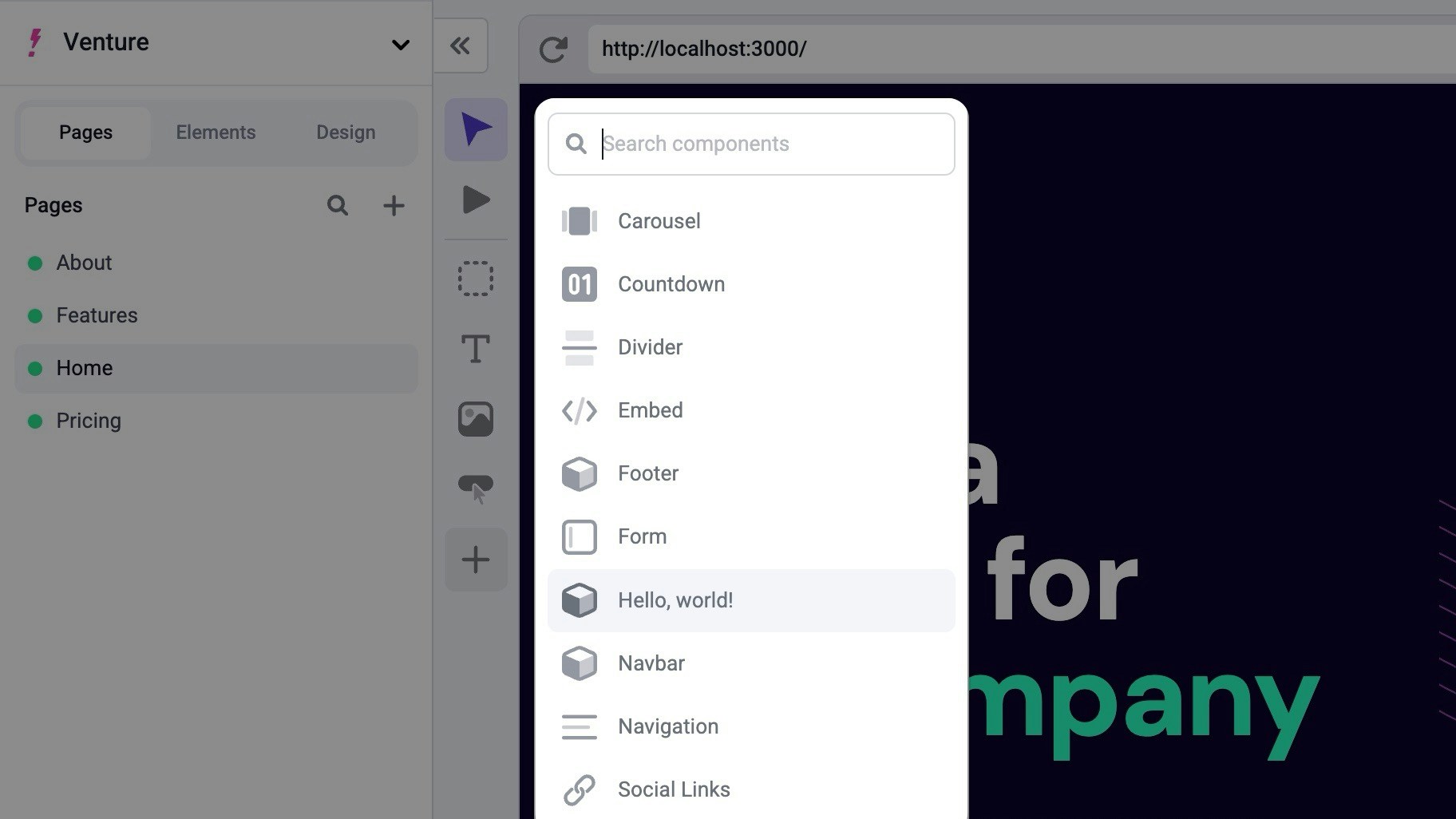
Great job! You should be able to create a page in Makeswift and start dropping in registered
components from the left toolbar.
 ## Next Steps
Here are a couple of ideas for what you might want to do next.
Learn the core concepts behind how Makeswift works.
Build custom components for use in the Visual Builder.
Translate your content into multiple languages.
## Next Steps
Here are a couple of ideas for what you might want to do next.
Learn the core concepts behind how Makeswift works.
Build custom components for use in the Visual Builder.
Translate your content into multiple languages.