> ## Documentation Index
> Fetch the complete documentation index at: https://docs.makeswift.com/llms.txt
> Use this file to discover all available pages before exploring further.
# Pages Router
> This guide walks you through setting up localization for your Makeswift site so you can visually customize your site for different locales.
If you don't already have a Next.js project using Pages Router set up with Makeswift, follow the [Pages Router Installation](/pages-router/installation) guide.
The feature is deeply integrated with [Next.js' internationalization
features](https://nextjs.org/docs/pages/building-your-application/routing/internationalization).
## Add locales in the Visual Builder
Open site settings and go to the **Locales** tab:
The number of locales you have access to is dependent upon your
[plan](/product/workspace/plans). Refer to the [pricing
page](https://makeswift.com/pricing) for full details.
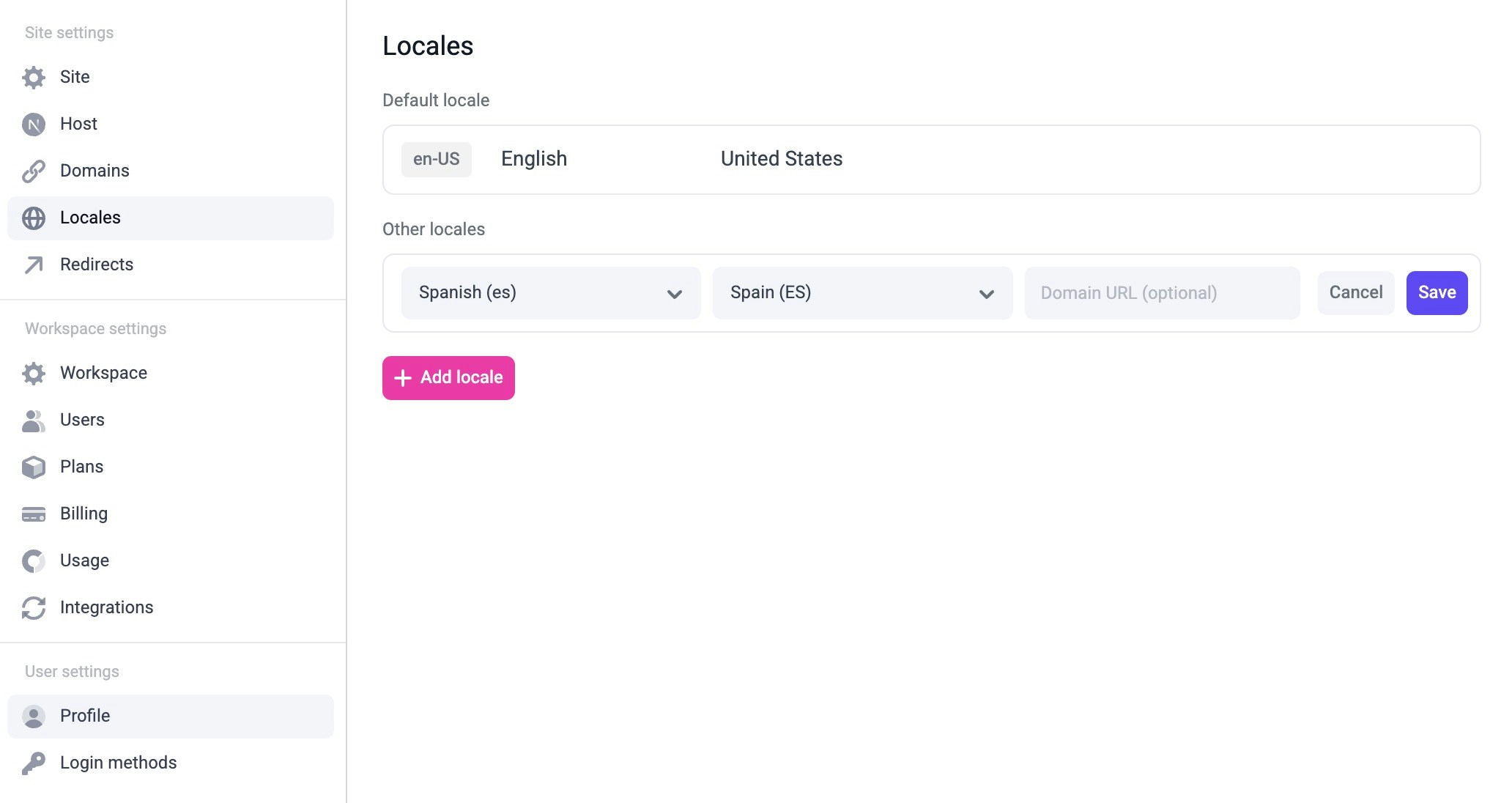
To add a new locale, click the **+ Add locale** button. In this case, we've added **es-ES**. You can then modify and delete a locale (except the default locale) by hovering over it and clicking the settings icon.
## Configure locales in your Next.js config
The locales in your site settings in Makeswift need to match the locales configured in `next.config.ts`. Without matching these exactly, pages in the Visual Builder will not load properly.
To match the locales on the screenshot above, update `next.config.ts` to be like this:
```js next.config.ts {8-11} theme={null}
import createWithMakeswift from "@makeswift/runtime/next/plugin";
const withMakeswift = createWithMakeswift();
/** @type {import('next').NextConfig} */
const nextConfig = {
// your existing next config
i18n: {
locales: ["en-US", "es-ES"],
defaultLocale: "en-US",
},
};
export default withMakeswift(nextConfig);
```
```js next.config.js {8-11} theme={null}
const createWithMakeswift = require("@makeswift/runtime/next/plugin");
const withMakeswift = createWithMakeswift();
/** @type {import('next').NextConfig} */
const nextConfig = {
// your existing next config
i18n: {
locales: ["en-US", "es-ES"],
defaultLocale: "en-US",
},
};
export default withMakeswift(nextConfig);
```
Note that in `next.config.ts`, you also need to put your `defaultLocale` in `locales`.
In this example, that would be `en-US`.
## Fetch snapshots by locale
Update your catch-all route to fetch the page snapshots by locale. This requires you to pass the locale from `getStaticProps` to `getPageSnapshot`. This code is usually located in `[[...path]].tsx`, but it might be different depending on your setup.
```tsx src/pages/[[...path]].tsx {35, 41, 48, 57} theme={null}
import {
GetStaticPathsResult,
GetStaticPropsContext,
GetStaticPropsResult,
} from "next";
import {
Page as MakeswiftPage,
PageProps as MakeswiftPageProps,
Makeswift,
type SiteVersion
} from "@makeswift/runtime/next";
import { client } from "@/makeswift/client";
import "@/makeswift/components";
type ParsedUrlQuery = { path?: string[] };
export async function getStaticPaths(): Promise<
GetStaticPathsResult
> {
const pages = await client.getPages().toArray();
return {
paths: pages.map((page) => ({
params: {
path: page.path.split("/").filter((segment) => segment !== ""),
},
})),
fallback: "blocking",
};
}
export type PageProps = MakeswiftPageProps & {
siteVersion: SiteVersion | null;
locale: string | undefined;
};
export async function getStaticProps({
params,
previewData,
locale,
}: GetStaticPropsContext): Promise<
GetStaticPropsResult
> {
const path = "/" + (params?.path ?? []).join("/");
const siteVersion = Makeswift.getSiteVersion(previewData);
const snapshot = await client.getPageSnapshot(path, {
siteVersion,
locale,
});
if (snapshot == null) return { notFound: true };
return {
props: {
snapshot,
siteVersion,
locale,
},
};
}
export default function Page({ snapshot }: MakeswiftPageProps) {
return ;
}
```
You'll also need to pass the locale to the `` component by updating your `_app.tsx` like so.
```tsx src/pages/_app.tsx {9, 15} theme={null}
import type { AppProps } from "next/app";
import { ReactRuntimeProvider } from "@makeswift/runtime/next";
import { runtime } from "@/makeswift/runtime";
import "@/makeswift/components";
export default function App({
Component,
pageProps: { siteVersion, locale, ...pageProps },
}: AppProps) {
return (
);
}
```
At this point, the new locale is live, and site visitors can access the corresponding localized routes. However, until you localize your pages, they will continue to display content from the default locale. Read on to learn how to start localizing page content in the Visual Builder.
## Edit your localized pages
Once you've set everything up, you should be able to switch to the locale using the locale switcher in the Visual Builder.
When you switch to the new locale (in this case switching from `en-US` to `es-ES`), you'll notice a message that informs you that the localized page inherits from the default locale. To stop inheriting from the default locale and start customizing the content for the localized page, click the **Edit for this locale** button.
**Note that until you edit and publish the localized page, it will continue displaying content from the default locale.** Any changes you make after clicking **Edit for this locale** will apply only to the localized version and won’t affect the base locale.
You can also customize the path for each page in each locale in the page's
settings. For example, if you have a company page at `example.com/company`,
you can create the Spanish version of the page at `example.com/es/compania` or
`example.es/compania`.
## Localized resources
When making changes on a different locale you can override any property, including the page's pathname, metadata, and SEO tags.
You can also localize a visually created component. While in a localized page, select the component and click **Edit component**. Make your changes, and then click **Save**. The changes made will be saved for that specific locale and will not affect the component for the base locale.
## Publishing
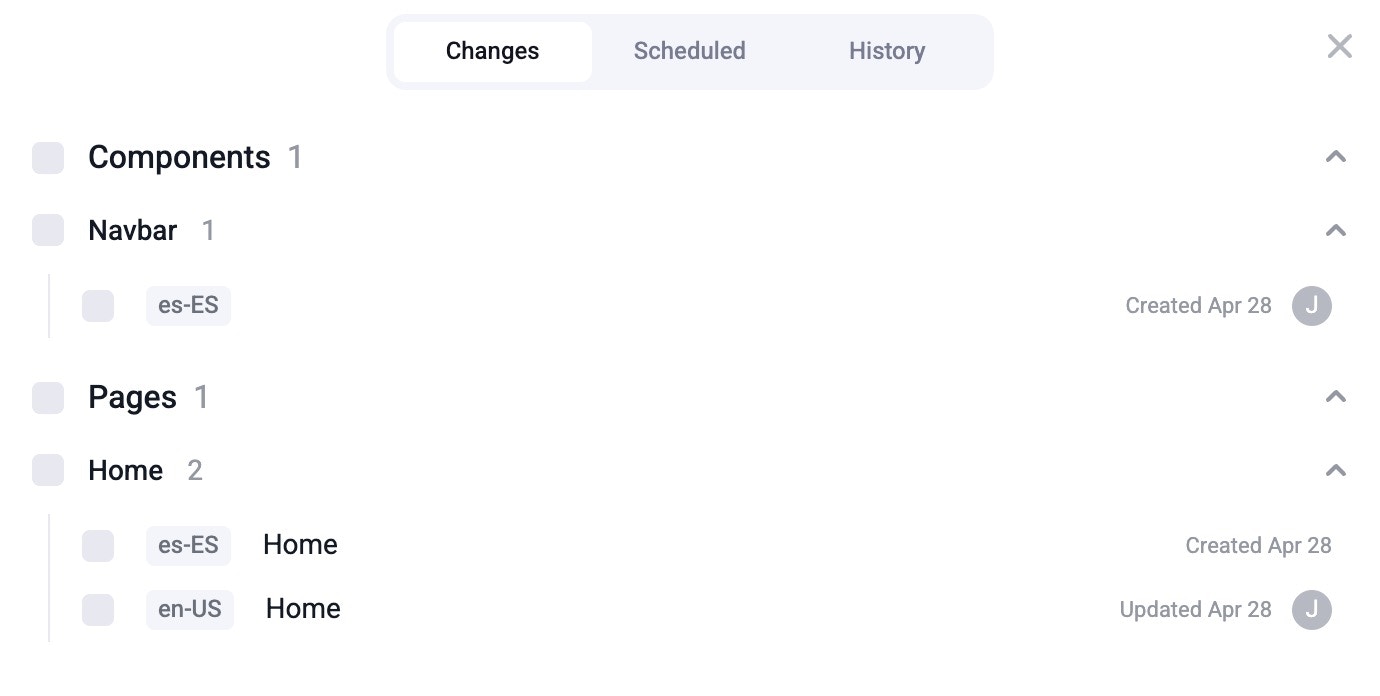
Remember that localized content (pages, components, etc.) needs to be published just like any other resource. After you're done making all of your changes, publish them for these changes to go live. In the publish dialog, you'll be able to see the locale attached to each resource.
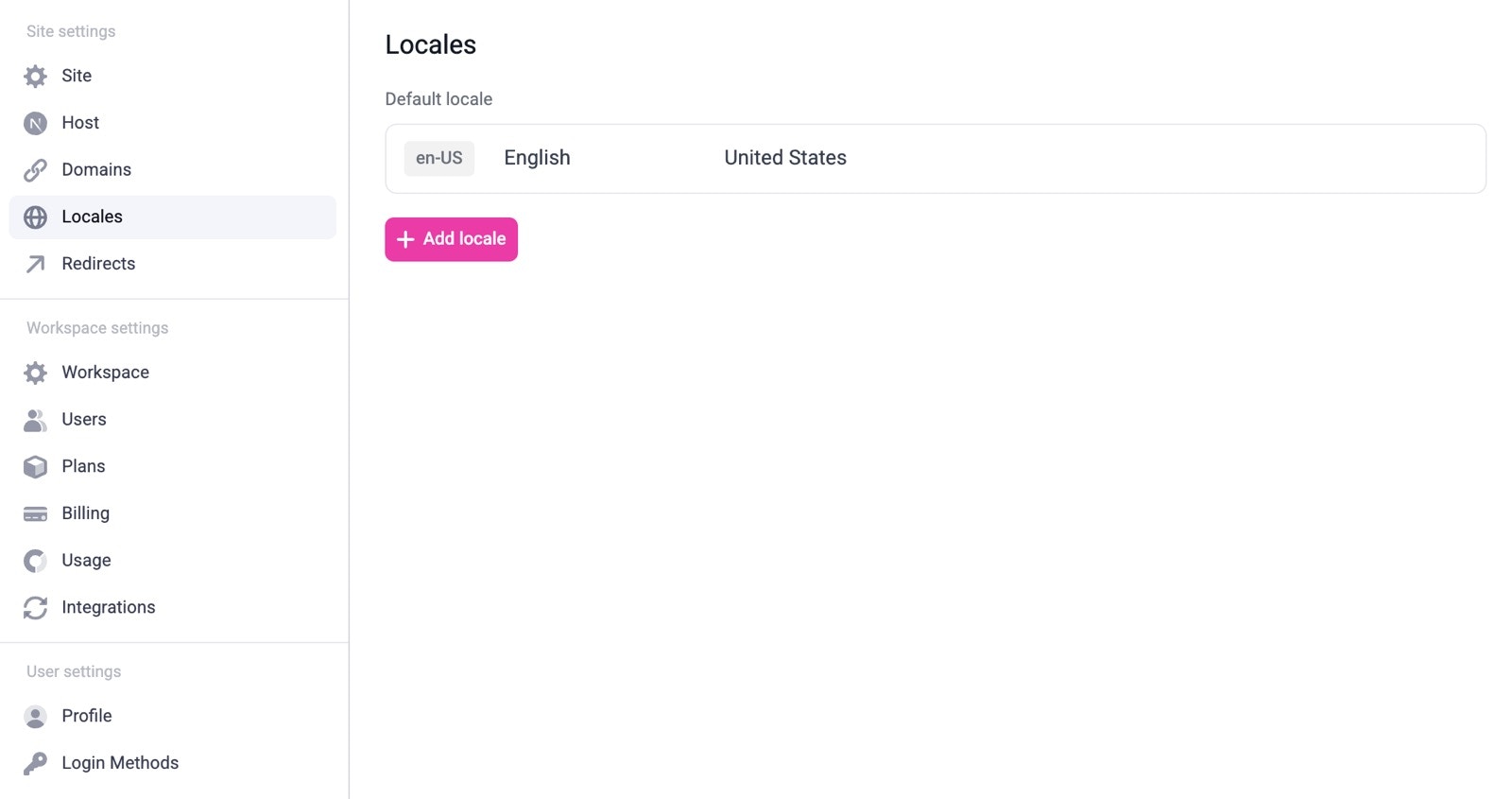 To add a new locale, click the **+ Add locale** button. In this case, we've added **es-ES**. You can then modify and delete a locale (except the default locale) by hovering over it and clicking the settings icon.
 ## Configure locales in your Next.js config
The locales in your site settings in Makeswift need to match the locales configured in `next.config.ts`. Without matching these exactly, pages in the Visual Builder will not load properly.
To match the locales on the screenshot above, update `next.config.ts` to be like this:
## Configure locales in your Next.js config
The locales in your site settings in Makeswift need to match the locales configured in `next.config.ts`. Without matching these exactly, pages in the Visual Builder will not load properly.
To match the locales on the screenshot above, update `next.config.ts` to be like this:
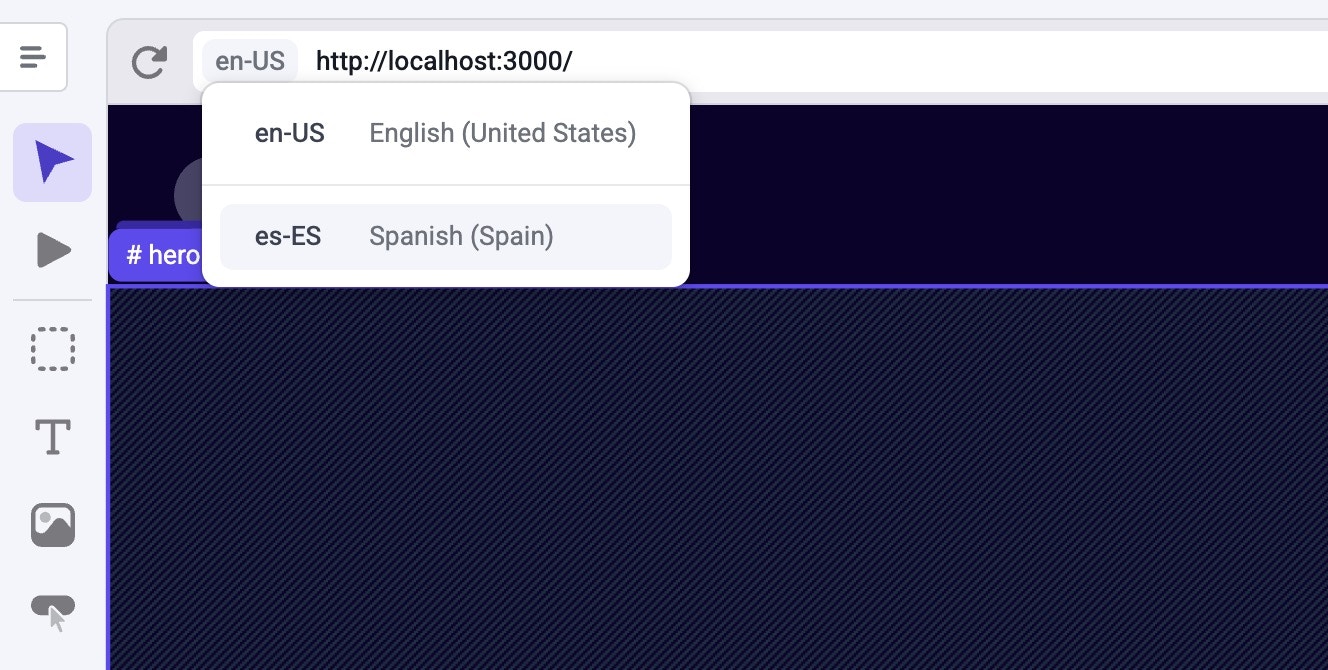 When you switch to the new locale (in this case switching from `en-US` to `es-ES`), you'll notice a message that informs you that the localized page inherits from the default locale. To stop inheriting from the default locale and start customizing the content for the localized page, click the **Edit for this locale** button.
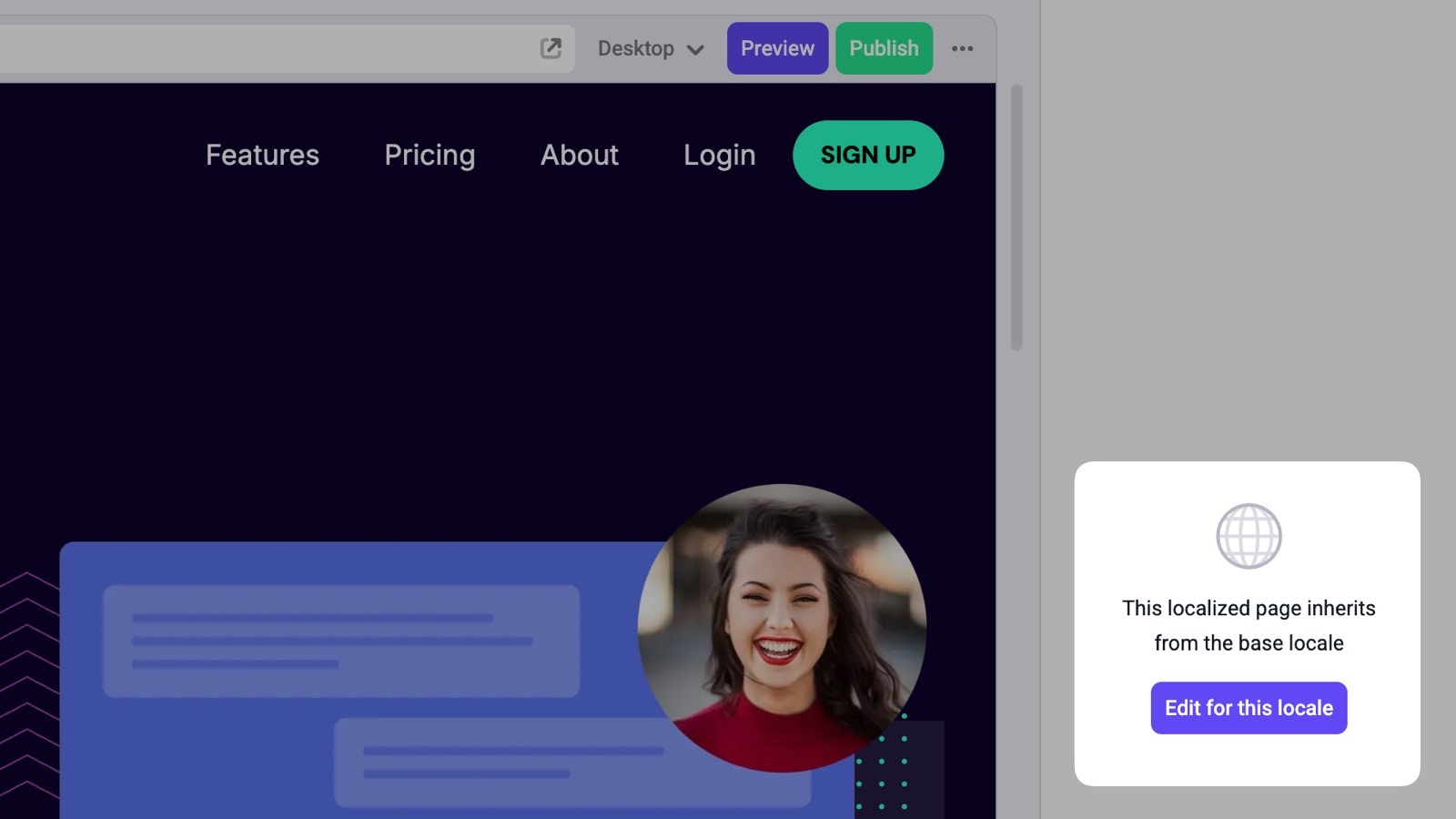 **Note that until you edit and publish the localized page, it will continue displaying content from the default locale.** Any changes you make after clicking **Edit for this locale** will apply only to the localized version and won’t affect the base locale.
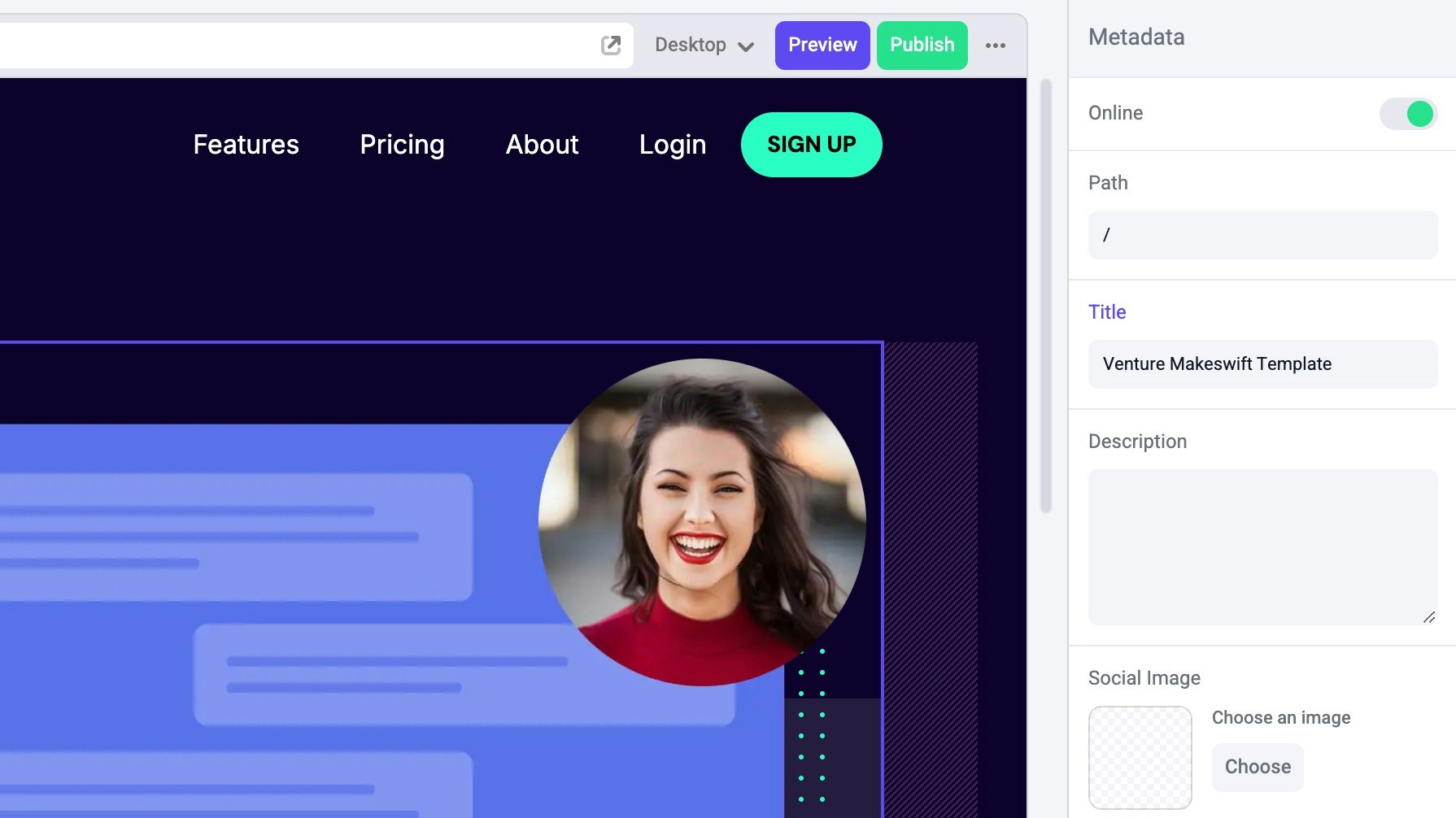 You can also localize a visually created component. While in a localized page, select the component and click **Edit component**. Make your changes, and then click **Save**. The changes made will be saved for that specific locale and will not affect the component for the base locale.
## Publishing
Remember that localized content (pages, components, etc.) needs to be published just like any other resource. After you're done making all of your changes, publish them for these changes to go live. In the publish dialog, you'll be able to see the locale attached to each resource.
You can also localize a visually created component. While in a localized page, select the component and click **Edit component**. Make your changes, and then click **Save**. The changes made will be saved for that specific locale and will not affect the component for the base locale.
## Publishing
Remember that localized content (pages, components, etc.) needs to be published just like any other resource. After you're done making all of your changes, publish them for these changes to go live. In the publish dialog, you'll be able to see the locale attached to each resource.