> ## Documentation Index
> Fetch the complete documentation index at: https://docs.makeswift.com/llms.txt
> Use this file to discover all available pages before exploring further.
# The basics
> The Makeswift builder is where all of the magic of visual editing happens. It allows you to visually create and update enterprise-grade web experiences with intuitive tools at your disposal. Design beautiful layouts and easily customize your site to match your brand with bespoke components. What you see is what you get with the Makeswift Builder.
## Overall layout
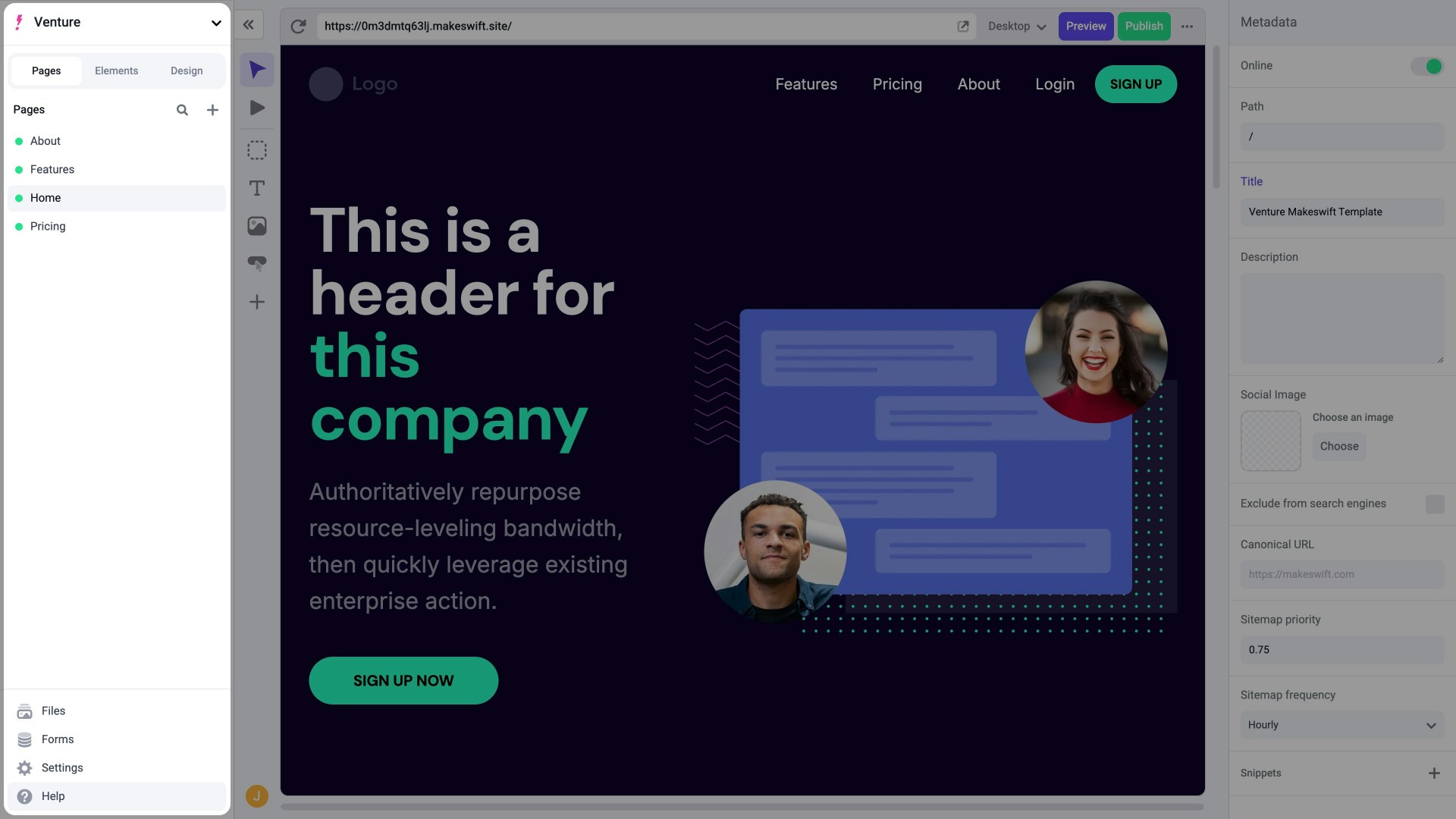
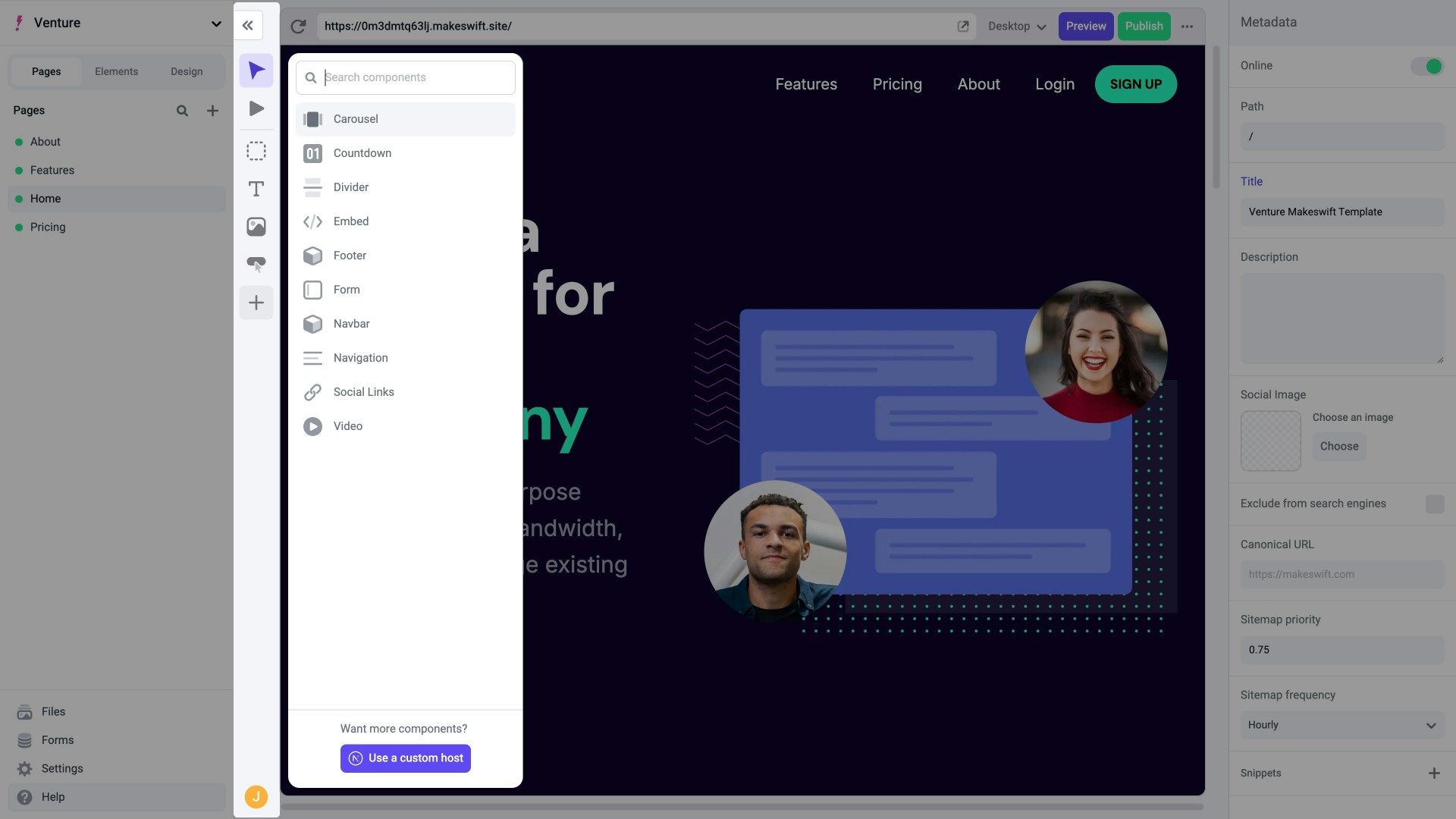
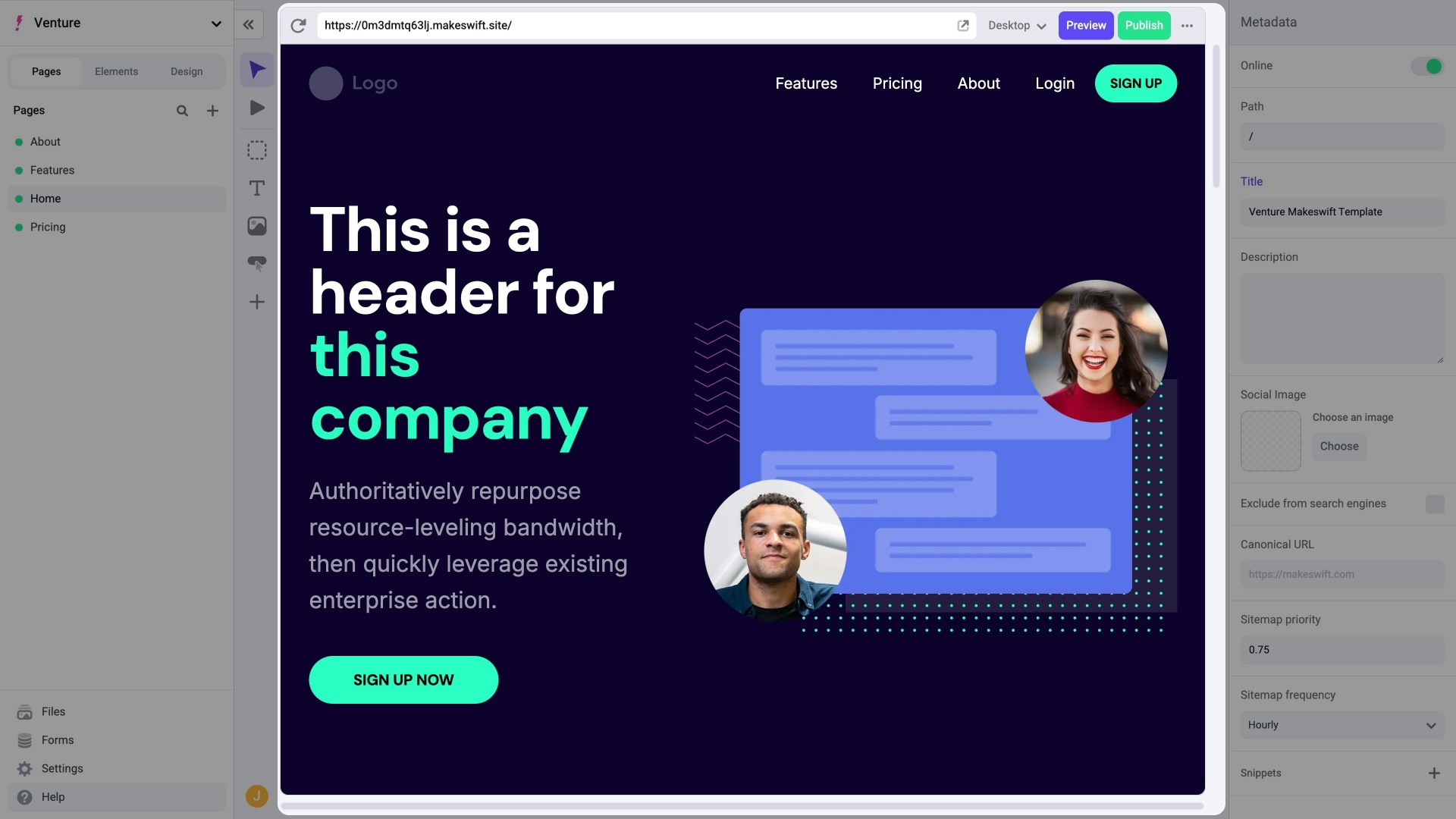
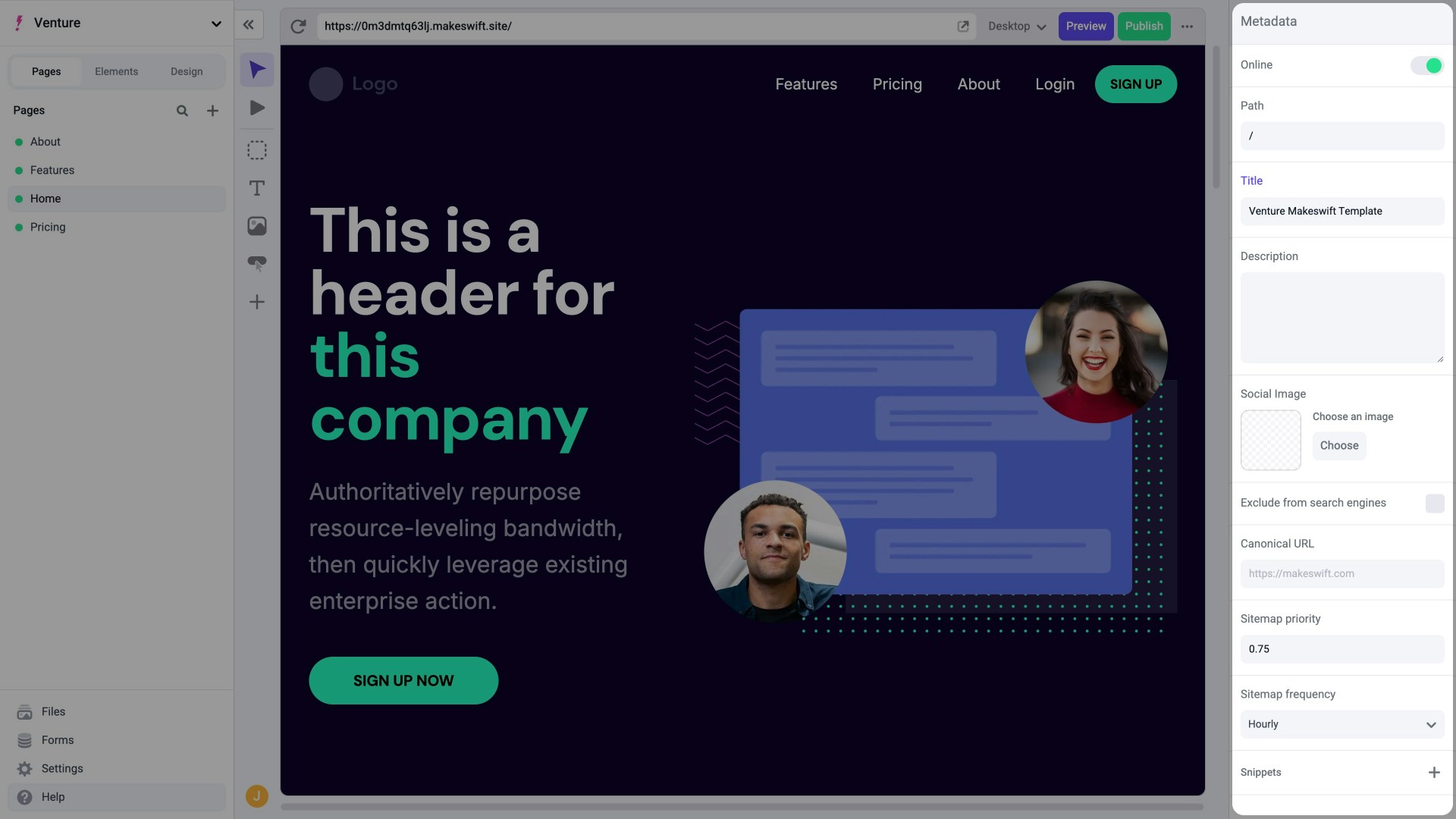
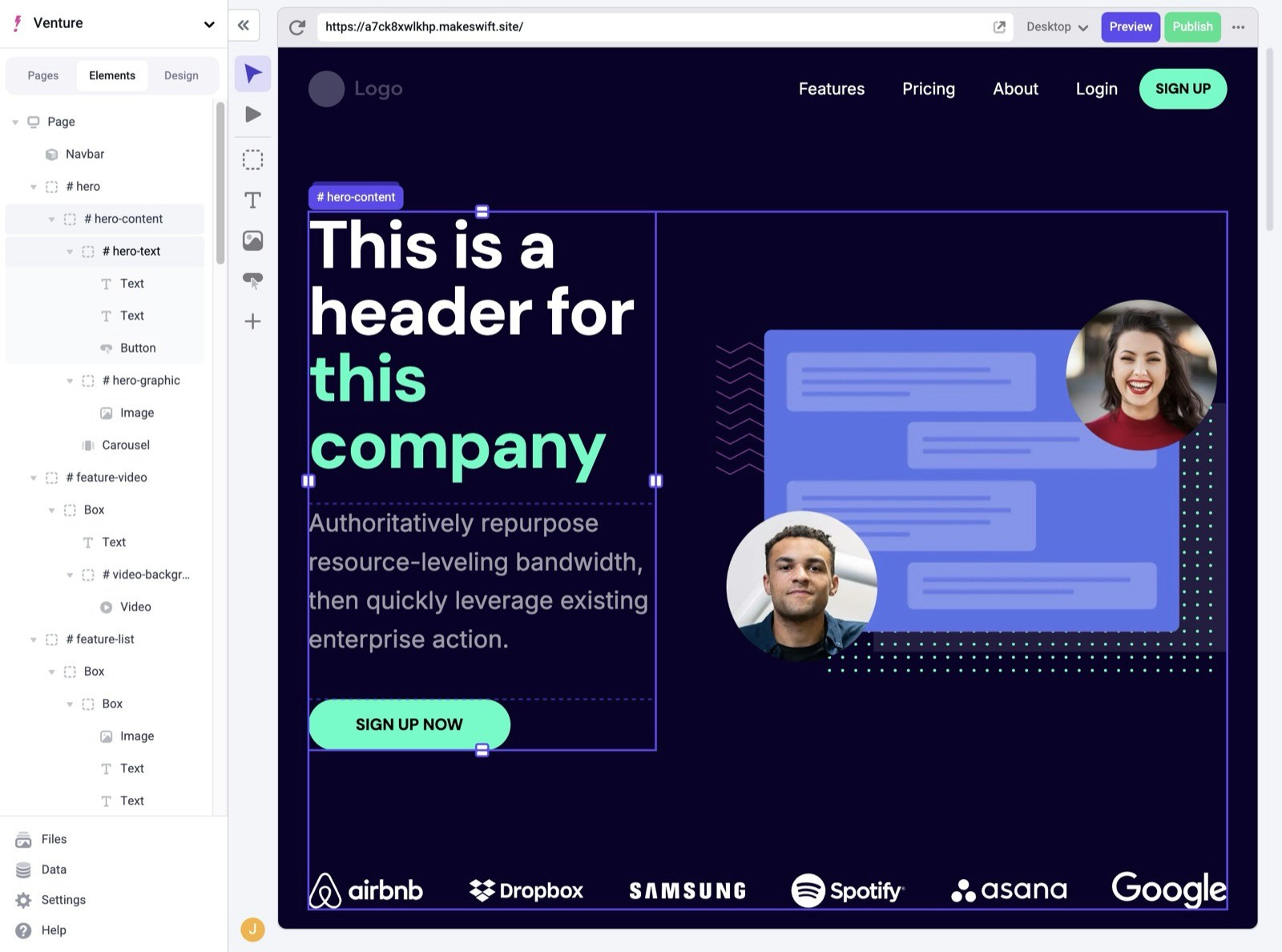
The Visual Builder is composed of 4 sections:
Explore your sites, pages, routes (beta), layers, files, and settings.
 Access components to add to the Canvas.
 Build your pages and see them come to life with an exact preview.
 Edit properties of a page, site, or component.
 ## Build & Interact modes
In the Component Toolbar, you'll notice two modes that dictate how you can engage with the elements on your Canvas, **Build** and **Interact**.
### Build mode
Build mode is the default mode and is most likely where you'll spend the majority of your time in the Visual Builder. It allows you to customize your website visually by dragging and dropping components, rearranging them to build layouts, and editing their properties.
### Interact mode
Interact mode renders your site in a way that allows you to engage with any interactive element (e.g. buttons, links, etc.) without having to formally [Publish](/product/publishing) your site. This is particularly useful to expose and edit a piece of content that requires a button click to be shown. A good example of this would be content within an accordion.
## Elements Panel
The Elements Panel allows users to easily view and select individual components from your page. Nested components will be displayed in a hierarchical structure, making it easy to understand the page structure and relationship between components.
## Build & Interact modes
In the Component Toolbar, you'll notice two modes that dictate how you can engage with the elements on your Canvas, **Build** and **Interact**.
### Build mode
Build mode is the default mode and is most likely where you'll spend the majority of your time in the Visual Builder. It allows you to customize your website visually by dragging and dropping components, rearranging them to build layouts, and editing their properties.
### Interact mode
Interact mode renders your site in a way that allows you to engage with any interactive element (e.g. buttons, links, etc.) without having to formally [Publish](/product/publishing) your site. This is particularly useful to expose and edit a piece of content that requires a button click to be shown. A good example of this would be content within an accordion.
## Elements Panel
The Elements Panel allows users to easily view and select individual components from your page. Nested components will be displayed in a hierarchical structure, making it easy to understand the page structure and relationship between components.
 ## Multiplayer
Makeswift's multiplayer facilitates real-time collaboration for you and your team. You can see who is editing a page in real time right in the canvas.
## Copy & Paste
When creating a site in the Visual Builder, it's common to want to reuse content and layouts that you've previously created. You can use the Visual Builder's copy and paste feature to duplicate elements quickly.
To copy and paste a selected element, use the actions menu at the top right of the [Properties Sidebar](/product/builder-basics), or by use keyboard shortcuts.
## Multiplayer
Makeswift's multiplayer facilitates real-time collaboration for you and your team. You can see who is editing a page in real time right in the canvas.
## Copy & Paste
When creating a site in the Visual Builder, it's common to want to reuse content and layouts that you've previously created. You can use the Visual Builder's copy and paste feature to duplicate elements quickly.
To copy and paste a selected element, use the actions menu at the top right of the [Properties Sidebar](/product/builder-basics), or by use keyboard shortcuts.
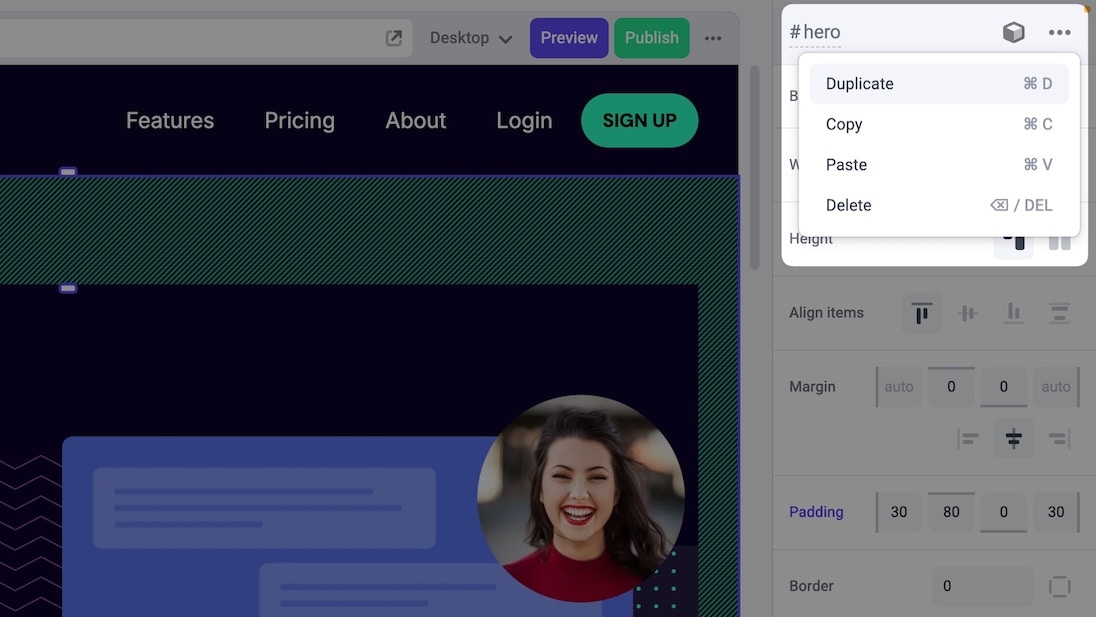 * Copy a component `⌘ + C` - copies the selected element to your clipboard
* Paste a component `⌘ + V` - places the copied element in the [Canvas](/product/builder-basics) (you choose exactly where to place it)
If you're copying and pasting across sites, any contained resources (like images, colors, global elements) will need to be remapped to the new site.
See our [Copy & Paste Across Sites](/product/visual-builder/copy-paste-across-sites) guide for more information.
## Help
If you have any questions about Makeswift or need to access our docs from the builder, click the “?” at the bottom of the navigation.
* Copy a component `⌘ + C` - copies the selected element to your clipboard
* Paste a component `⌘ + V` - places the copied element in the [Canvas](/product/builder-basics) (you choose exactly where to place it)
If you're copying and pasting across sites, any contained resources (like images, colors, global elements) will need to be remapped to the new site.
See our [Copy & Paste Across Sites](/product/visual-builder/copy-paste-across-sites) guide for more information.
## Help
If you have any questions about Makeswift or need to access our docs from the builder, click the “?” at the bottom of the navigation.
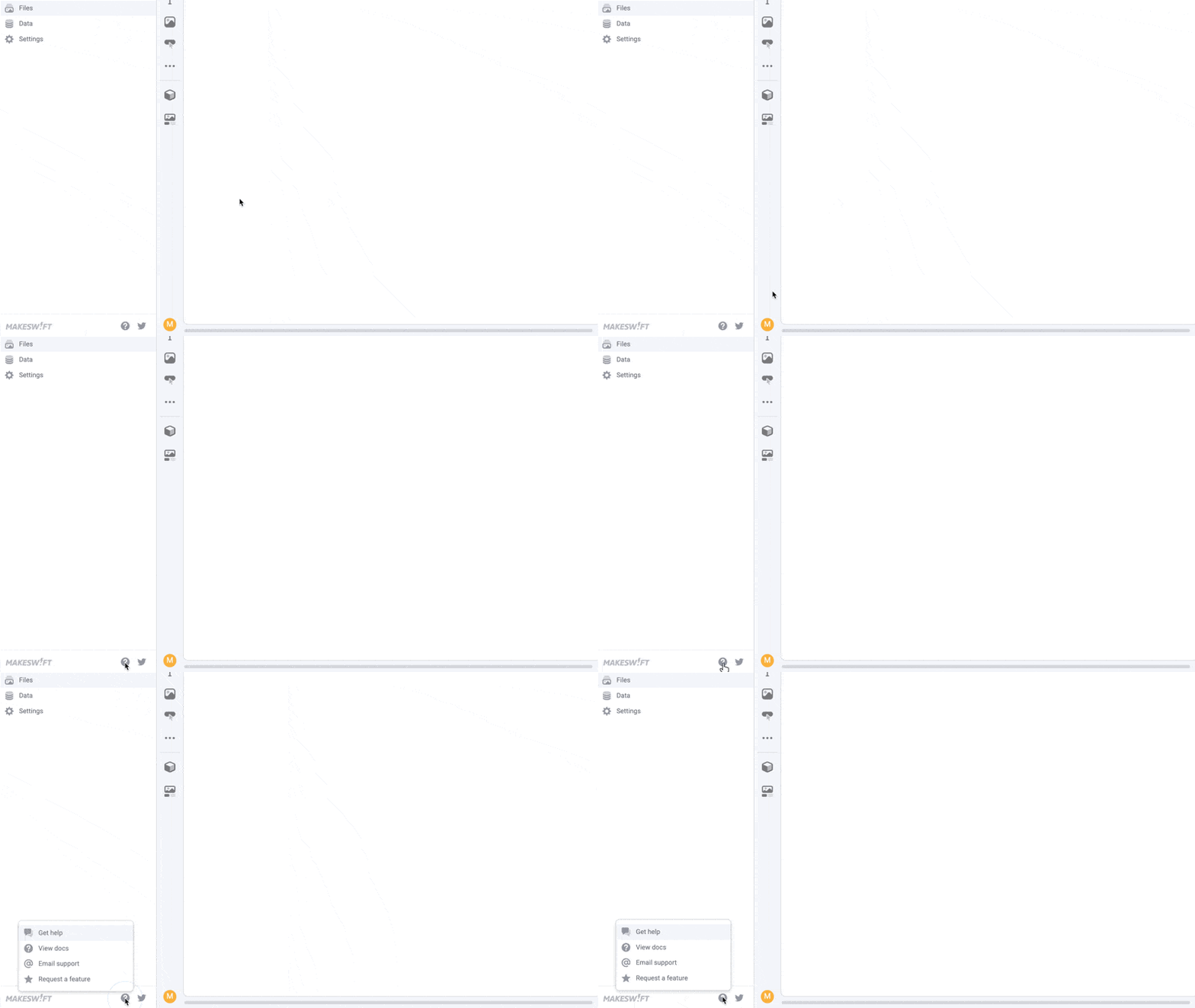
Access our AI chatbot to point you in the right direction quickly. Our AI
chatbot is integrated with Vercel, Next.js, and BigCommerce's doc sites as
well, so no question is out of scope.
You probably know how to get to our docs already, but they're available here
if you ever need to access them quickly from the builder.
Have an issue that you can't resolve from our docs? Feel free to submit a
support ticket and someone on our support team will be happy to help.
See something missing? We're always looking to improve our product and would
love to get insight from our users on what features would make their lives
easier. Use the "Request a feature" button to also see what features are on
our immediate roadmap and subscribe to each feature to be informed when they
launch.