> ## Documentation Index
> Fetch the complete documentation index at: https://docs.makeswift.com/llms.txt
> Use this file to discover all available pages before exploring further.
# Previewing and sharing
> Makeswift allows you to share previews of different versions of your site for enhanced collaboration and feedback.
Sharing requires a [custom host](/product/site/hosting#custom-host) running at
least `v0.25.0` of the runtime. To upgrade, see our [runtime upgrade
guide](/developer/upgrading/0.25.0). If you are using a version prior to
`v0.25.0`, please reference the [preview button
documentation](#preview-button-deprecated).
Makeswift allows you to preview and share different versions of your site for enhanced collaboration and feedback using [Site Previews](#site-previews) and [Share Links](#share-links).
You can preview different versions of your site for any of the following:
* The current draft state of your site in the Visual Builder
* A particular scheduled publish
* A specific previous publish of your site
## Site Preview
Site Previews allow you to preview different versions of your site directly on your domain without generating a shareable link. This is useful when you want to review changes privately on your own device before deciding whether to share them with others via [Share Links](#share-links).
### Previewing draft state
There are two ways to preview the draft state (the current state of your site in the Visual Builder):
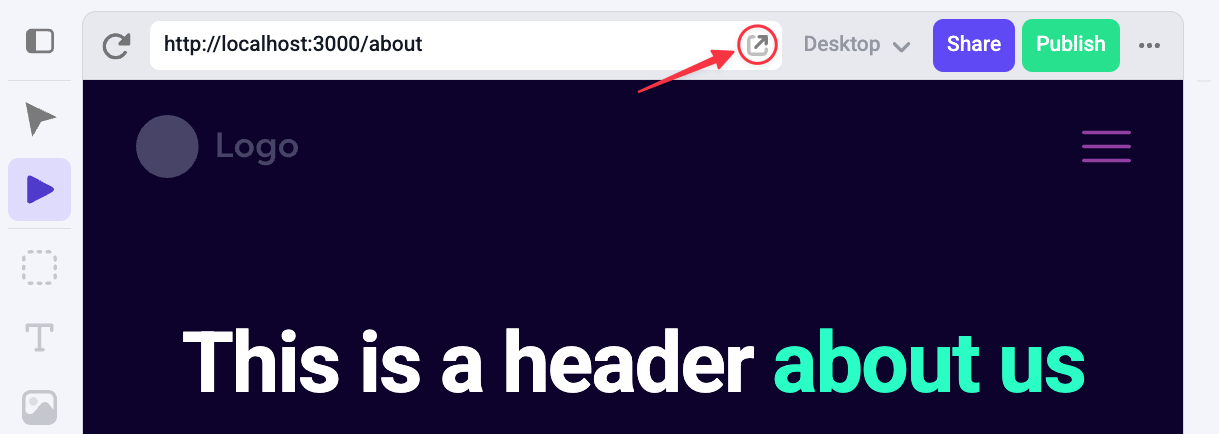
* Via the **View page** icon in the Visual Builder header
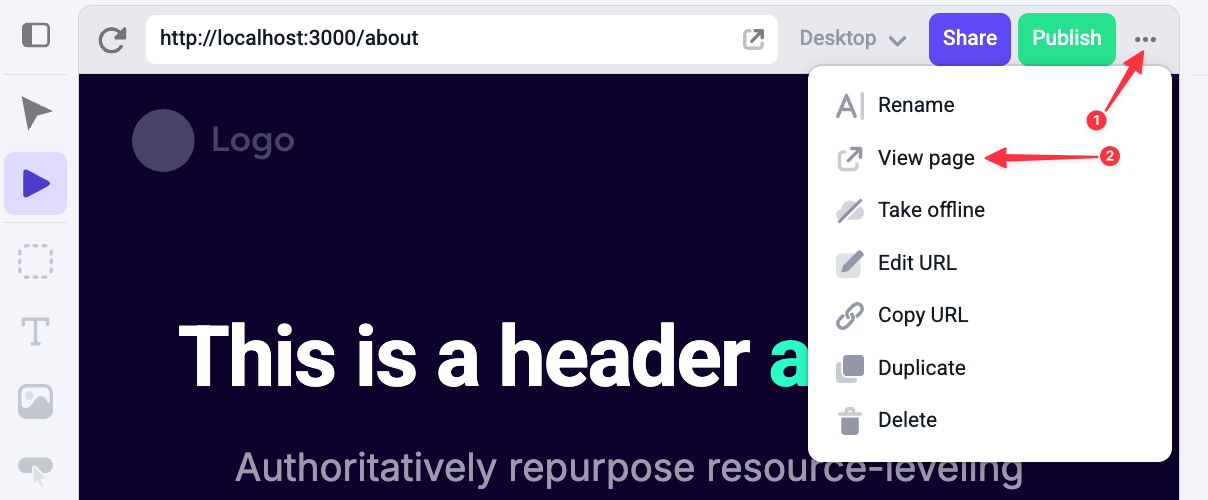
* Via the **Action Menu** in the Visual Builder header
To preview via the **View page** icon, click the open icon to the right of the address bar in the Visual Builder header. This opens your site in a new tab and shows the current draft state.
 To preview via the **Action Menu**, click the three dots in the top right corner of the Visual Builder header. From the menu, select **View page**.
 ### Previewing a scheduled publish
To preview a particular scheduled publish, open the publish dialog and navigate to the **Scheduled** tab. Hover over the scheduled publish you'd like to preview and open the **Action Menu** by clicking the three dots, then select **Preview**. This opens your site in a new tab showing the scheduled publish preview.
### Previewing a previous publish
To preview a specific previous publish, open the publish dialog and navigate to the **History** tab. Hover over the publish you'd like to preview and open the **Action Menu** by clicking the three dots, then select **Preview**. This opens your site in a new tab showing the previous publish preview.
### Exiting previews
When you open a preview, you'll see that version of the site directly on your domain, even after refreshing or navigating between pages.
To return to the live site:
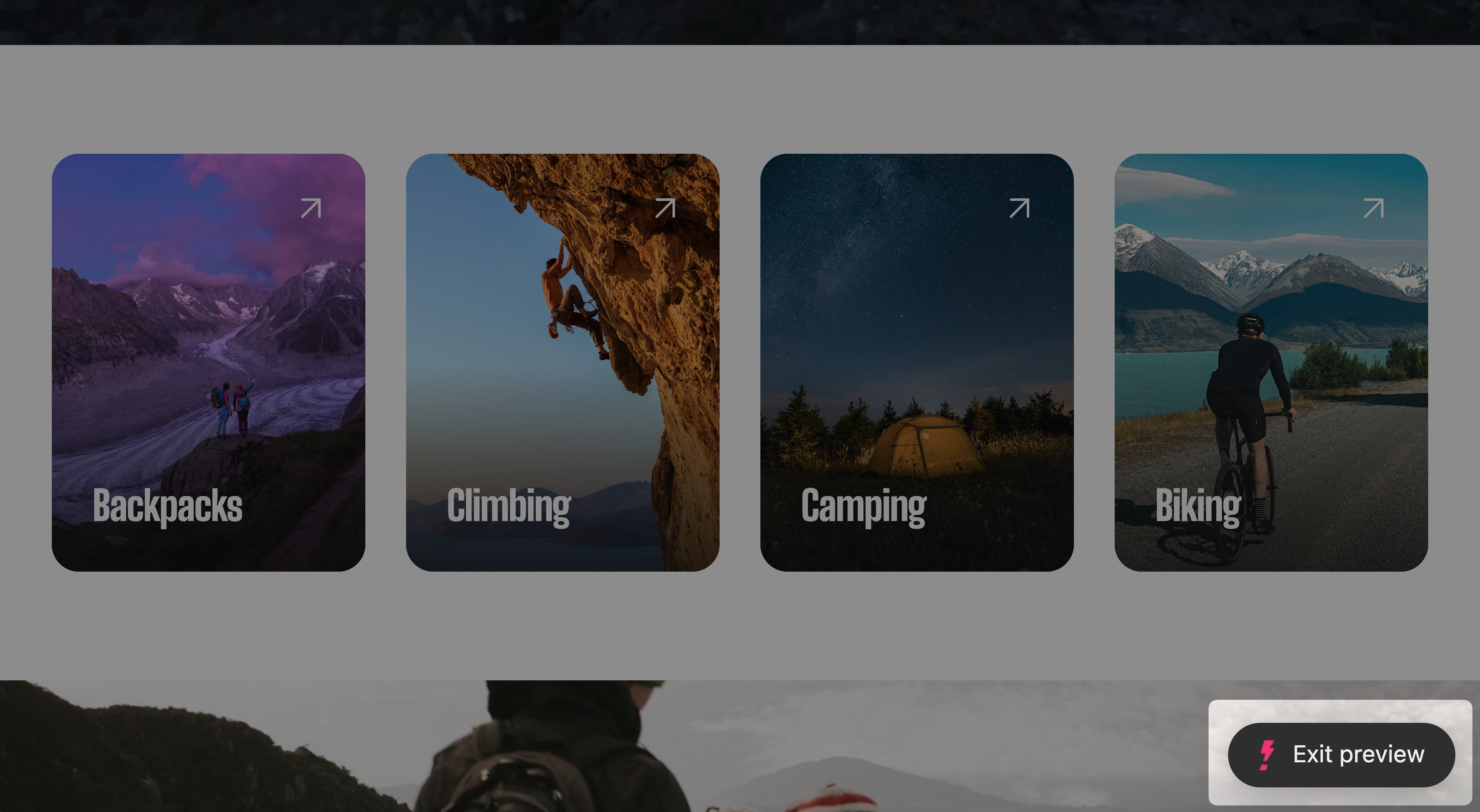
* Click **Exit preview** in the bottom-right corner of the page.
* Or clear your cookies for the site to remove the preview state.
Exiting the preview returns you to the currently published live site. It does not modify your drafts, scheduled publishes, or publish history.
### Previewing a scheduled publish
To preview a particular scheduled publish, open the publish dialog and navigate to the **Scheduled** tab. Hover over the scheduled publish you'd like to preview and open the **Action Menu** by clicking the three dots, then select **Preview**. This opens your site in a new tab showing the scheduled publish preview.
### Previewing a previous publish
To preview a specific previous publish, open the publish dialog and navigate to the **History** tab. Hover over the publish you'd like to preview and open the **Action Menu** by clicking the three dots, then select **Preview**. This opens your site in a new tab showing the previous publish preview.
### Exiting previews
When you open a preview, you'll see that version of the site directly on your domain, even after refreshing or navigating between pages.
To return to the live site:
* Click **Exit preview** in the bottom-right corner of the page.
* Or clear your cookies for the site to remove the preview state.
Exiting the preview returns you to the currently published live site. It does not modify your drafts, scheduled publishes, or publish history.
 ## Share Links
All share links expire after 5 days. After expiration, visiting the share link will result in an error, and users will no longer be able to see the shared version of the site.
Share Links are powered by [Site Previews](#site-previews). They allow you to create shareable links that give others access to specific versions of your site. This means that a recipient of a share link will be able to view the entire site as it was in the shared version.
By default, Share Links can only be accessed by other members of your Makeswift workspace,
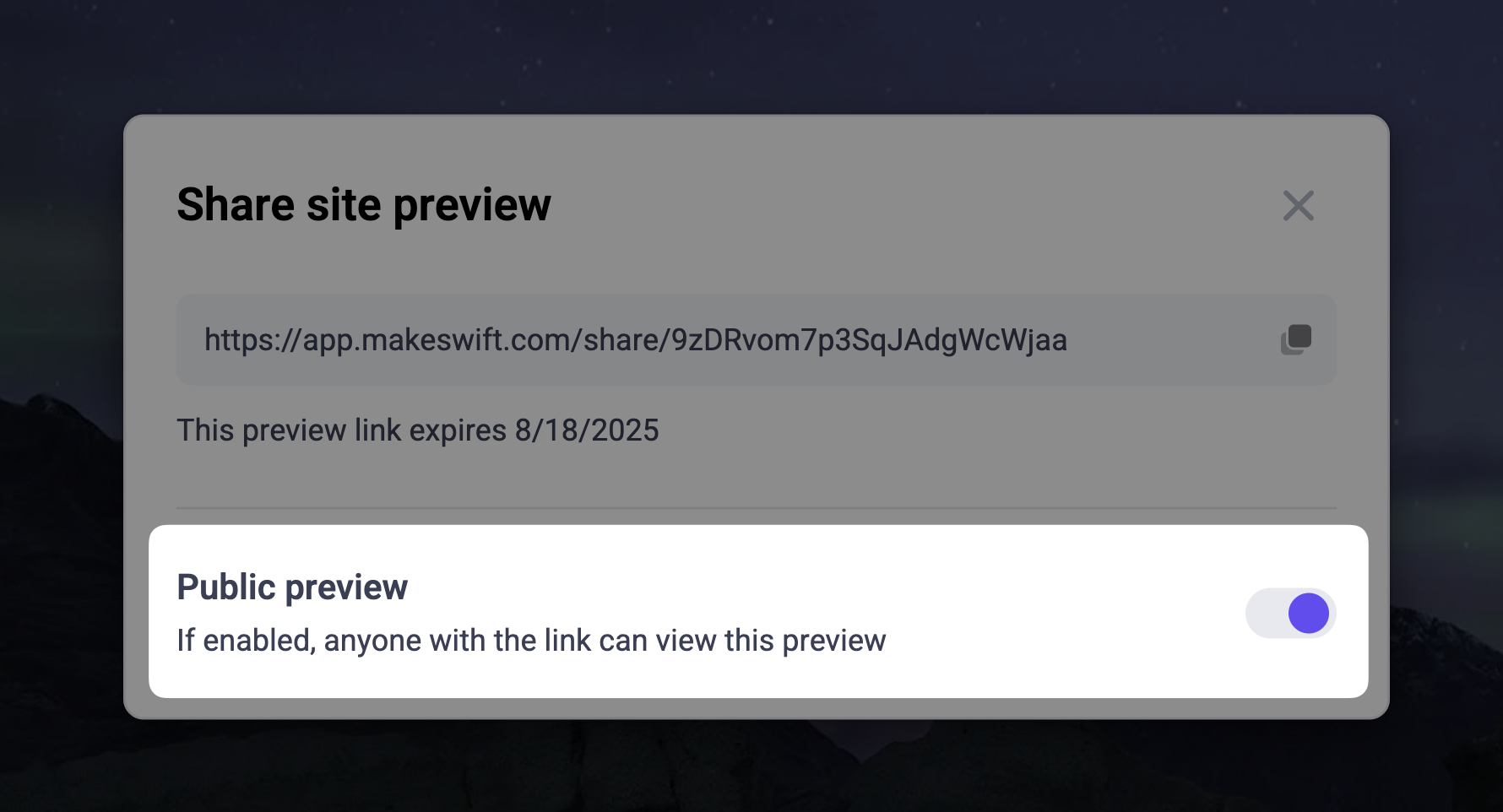
but you can create a public Share Link by toggling the `Public preview` option when generating the link, allowing anyone with the link to view the shared version without needing workspace access.
## Share Links
All share links expire after 5 days. After expiration, visiting the share link will result in an error, and users will no longer be able to see the shared version of the site.
Share Links are powered by [Site Previews](#site-previews). They allow you to create shareable links that give others access to specific versions of your site. This means that a recipient of a share link will be able to view the entire site as it was in the shared version.
By default, Share Links can only be accessed by other members of your Makeswift workspace,
but you can create a public Share Link by toggling the `Public preview` option when generating the link, allowing anyone with the link to view the shared version without needing workspace access.
 ### Sharing draft state
To share the draft state (the current state of your site in the Visual Builder), click on the **Share** button in the top right corner of the Visual Builder header.
This will open a dialog that has a new shareable link generated for you. You can copy this link and share it with others.
### Sharing a scheduled publish
To share a particular scheduled publish, open the publish dialog and navigate to the **Scheduled** tab. Hover over the scheduled publish you'd like to share and click the **Share** icon, which will open a dialog with a shareable link for that specific publish.
### Sharing a previous publish
To share a specific previous publish, open the publish dialog and navigate to the **History** tab. Hover over the publish you'd like to share and click the **Share** icon, which will open a dialog with a shareable link for that specific publish.
## Preview button (deprecated)
The Preview button is now deprecated and is no longer available as of
`v0.25.0`. However, if you are using a version of the Makeswift runtime prior
to `v0.25.0`, you can still use the preview feature as described below.
Preview links are only accessible to logged-in Makeswift users of the
workspace. For read-only access, you can add users with the role of
[Guest](/product/workspace/user#guests) which don't count against the number
of users in your plan. For more information, see the
[Users](/product/workspace/users) page.
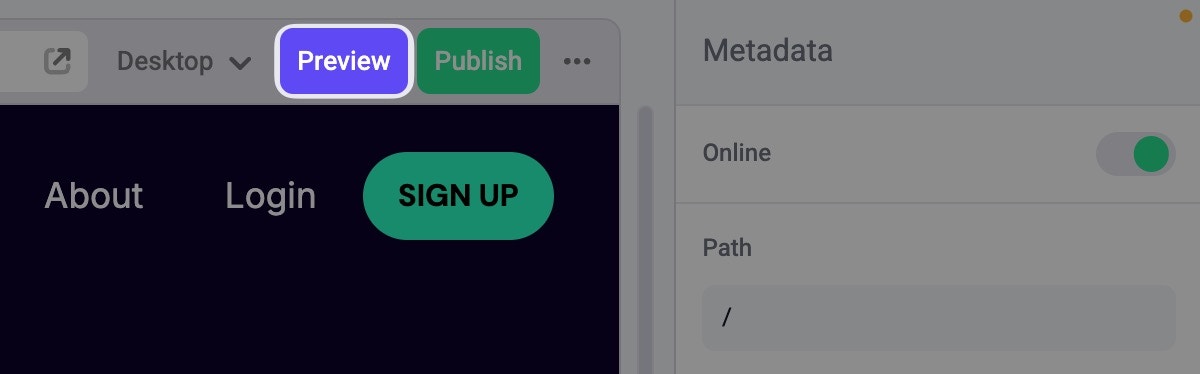
Makeswift allows you to share a preview link of your site with others. The preview
link will always show the latest changes made in the Visual Builder, even if they have not
been published. You can find the **Preview** button at the top right of the Visual Builder's
browser bar.
### Sharing draft state
To share the draft state (the current state of your site in the Visual Builder), click on the **Share** button in the top right corner of the Visual Builder header.
This will open a dialog that has a new shareable link generated for you. You can copy this link and share it with others.
### Sharing a scheduled publish
To share a particular scheduled publish, open the publish dialog and navigate to the **Scheduled** tab. Hover over the scheduled publish you'd like to share and click the **Share** icon, which will open a dialog with a shareable link for that specific publish.
### Sharing a previous publish
To share a specific previous publish, open the publish dialog and navigate to the **History** tab. Hover over the publish you'd like to share and click the **Share** icon, which will open a dialog with a shareable link for that specific publish.
## Preview button (deprecated)
The Preview button is now deprecated and is no longer available as of
`v0.25.0`. However, if you are using a version of the Makeswift runtime prior
to `v0.25.0`, you can still use the preview feature as described below.
Preview links are only accessible to logged-in Makeswift users of the
workspace. For read-only access, you can add users with the role of
[Guest](/product/workspace/user#guests) which don't count against the number
of users in your plan. For more information, see the
[Users](/product/workspace/users) page.
Makeswift allows you to share a preview link of your site with others. The preview
link will always show the latest changes made in the Visual Builder, even if they have not
been published. You can find the **Preview** button at the top right of the Visual Builder's
browser bar.
 We encourage you to use the preview feature to get feedback and review changes before doing a final publish.