> ## Documentation Index
> Fetch the complete documentation index at: https://docs.makeswift.com/llms.txt
> Use this file to discover all available pages before exploring further.
# Routes
> View your site's routes in the Pages Tab.
export const ReadinessBadge = ({type}) => {
const validTags = ["beta", "alpha", "experimental"];
const tagText = type?.trim().toLowerCase();
if (!tagText || !validTags.includes(tagText)) return null;
useEffect(() => {
const titleElement = document.querySelector("#page-title, .page-title, h1");
if (!titleElement) return;
if (titleElement.querySelector(".badge")) return;
const badge = document.createElement("span");
badge.className = `badge ${tagText}-badge`;
badge.textContent = tagText;
badge.style.transform = "translateY(-3px)";
titleElement.appendChild(badge);
}, []);
return null;
};
Routes are currently in Beta and can be enabled via the [Early Access](/product/user-settings/early-access) settings.
Routes do not support [collections](/product/pages-tab#managing-collections). However, if
collections exist when enabling Routes they will be preserved and not deleted.
Routes represent external pages (not managed by Makeswift) that you want to include in your site's navigation structure.
The main difference between a page and a route is that you cannot change the URL or delete a route from the Pages Tab. However, you can edit the content after navigating to a route if it has been integrated with Makeswift.
Routes are useful for several scenarios:
* **External content**: Blog posts managed in a CMS or products in an e-commerce platform
* **Hardcoded pages**: Any static pages you don't want to be editable in Makeswift but want visible for better discoverability
* **Authentication pages**: Sign up and login views with editable marketing content integrated
To enable routes on your site, you must enable the feature in the [**Early access**](/product/user-settings/early-access) settings:
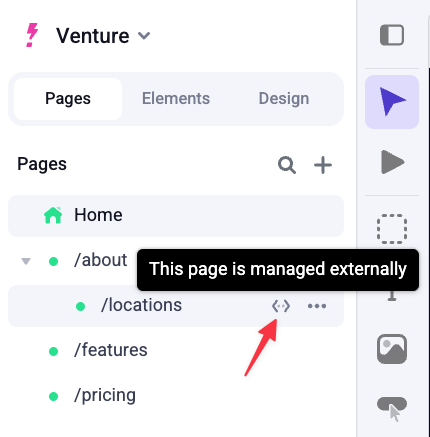
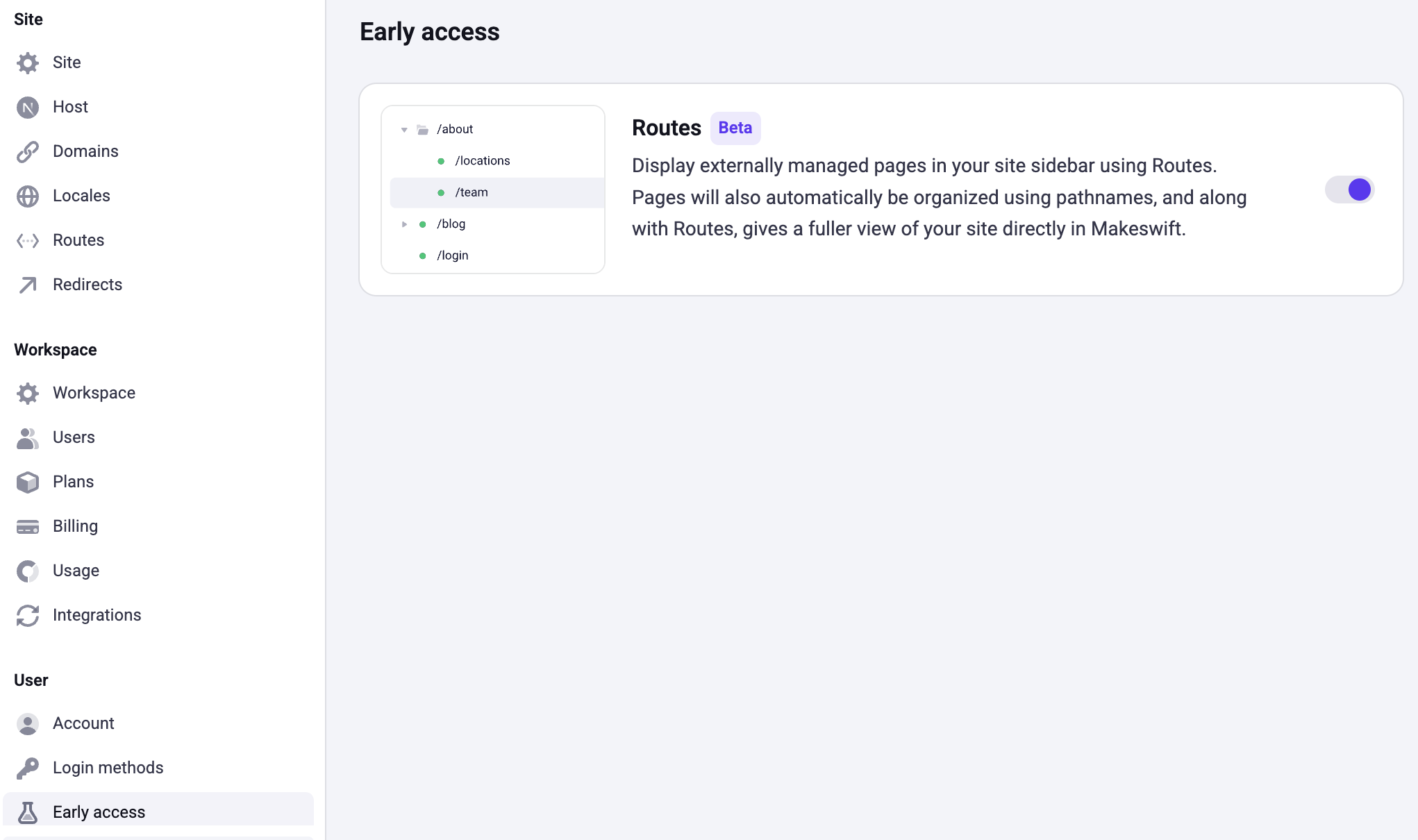 Once enabled, the Pages Tab in the Site Sidebar will display both pages and routes associated with your site. You can identify routes by the route icon that appears to the right of the name. A tooltip will also appear stating "*This page is managed externally*".
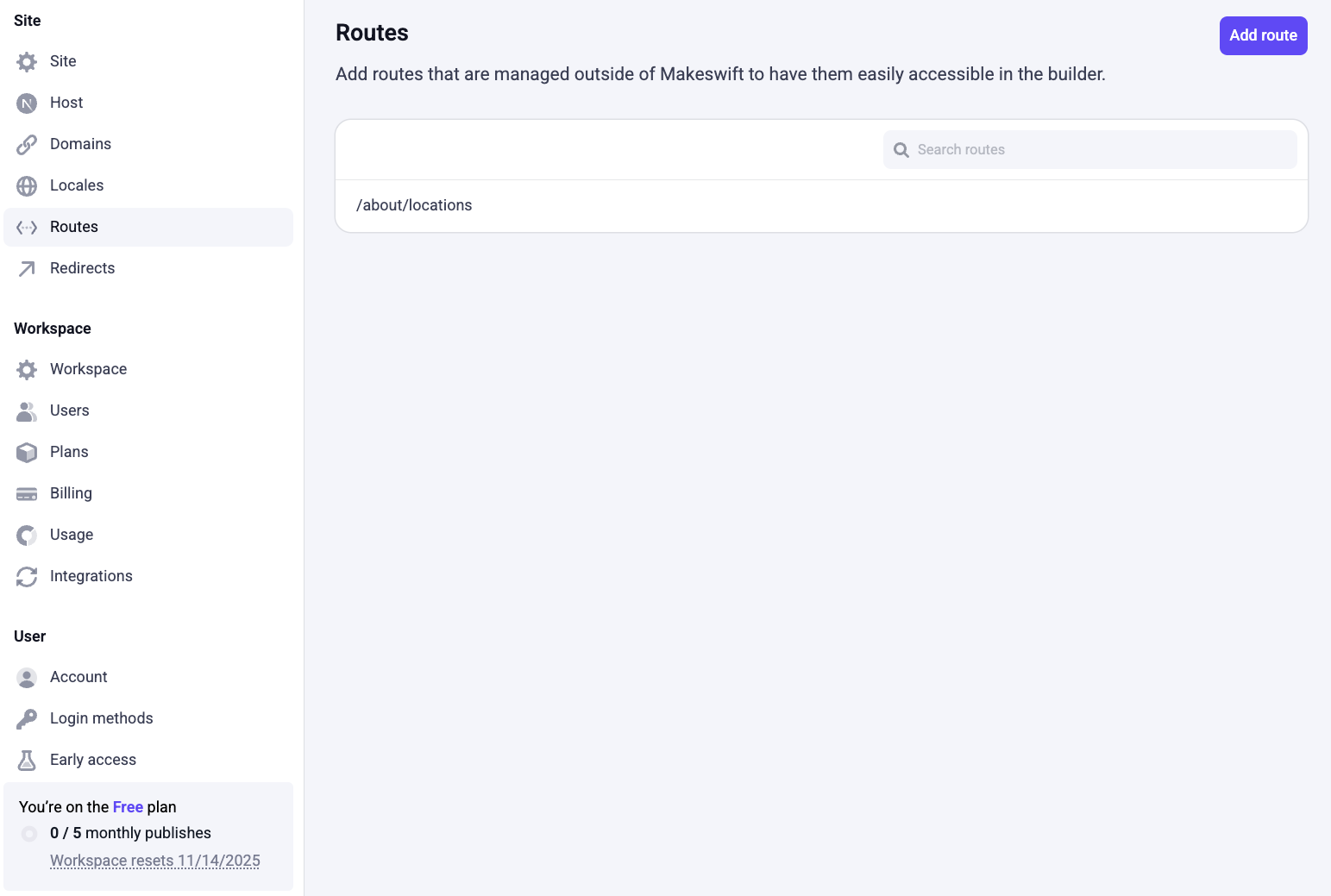
 A new Site setting called **Routes** will also be available in the Settings dialog. This setting allows you to add, edit, and delete routes that you want to see in the Pages Tab.
 ## Adding routes
To add a route to your site:
* In the bottom of the Site Sidebar, click **Settings**
* In the Settings dialog, click **Routes**
* Click the **Add Route** button at the top right of the Routes setting page
* Enter a pathname for the route
* Click **Add Route**
The route will now appear in the Pages Tab of the Site Sidebar.
## Editing routes
To edit an existing route:
* In the bottom of the Site Sidebar, click **Settings**
* In the Settings dialog, click **Routes**
* Hover over the route you want to edit and click the **Edit** button that appears to the right of the route name
* In the **Edit Route** dialog, make your changes and click **Save**
The route will be updated in the Pages Tab of the Site Sidebar.
## Deleting routes
To delete an existing route:
* In the bottom of the Site Sidebar, click **Settings**
* In the Settings dialog, click **Routes**
* Hover over the route you want to delete and click the **Delete** button that appears to the right of the route name
* In the Delete Route dialog, click **Delete**
The route will be removed from the Pages Tab of the Site Sidebar.
## Adding routes
To add a route to your site:
* In the bottom of the Site Sidebar, click **Settings**
* In the Settings dialog, click **Routes**
* Click the **Add Route** button at the top right of the Routes setting page
* Enter a pathname for the route
* Click **Add Route**
The route will now appear in the Pages Tab of the Site Sidebar.
## Editing routes
To edit an existing route:
* In the bottom of the Site Sidebar, click **Settings**
* In the Settings dialog, click **Routes**
* Hover over the route you want to edit and click the **Edit** button that appears to the right of the route name
* In the **Edit Route** dialog, make your changes and click **Save**
The route will be updated in the Pages Tab of the Site Sidebar.
## Deleting routes
To delete an existing route:
* In the bottom of the Site Sidebar, click **Settings**
* In the Settings dialog, click **Routes**
* Hover over the route you want to delete and click the **Delete** button that appears to the right of the route name
* In the Delete Route dialog, click **Delete**
The route will be removed from the Pages Tab of the Site Sidebar.