> ## Documentation Index
> Fetch the complete documentation index at: https://docs.makeswift.com/llms.txt
> Use this file to discover all available pages before exploring further.
# Snippets
> Snippets are blocks of code shared at the site level that can be added to your pages. Code that is not visual, such as Google Analytics, Facebook pixels, or custom CSS, should be placed into snippets. We recommend using separate snippets for each block of code to keep things flexible and easy to find.
## Creating a snippet
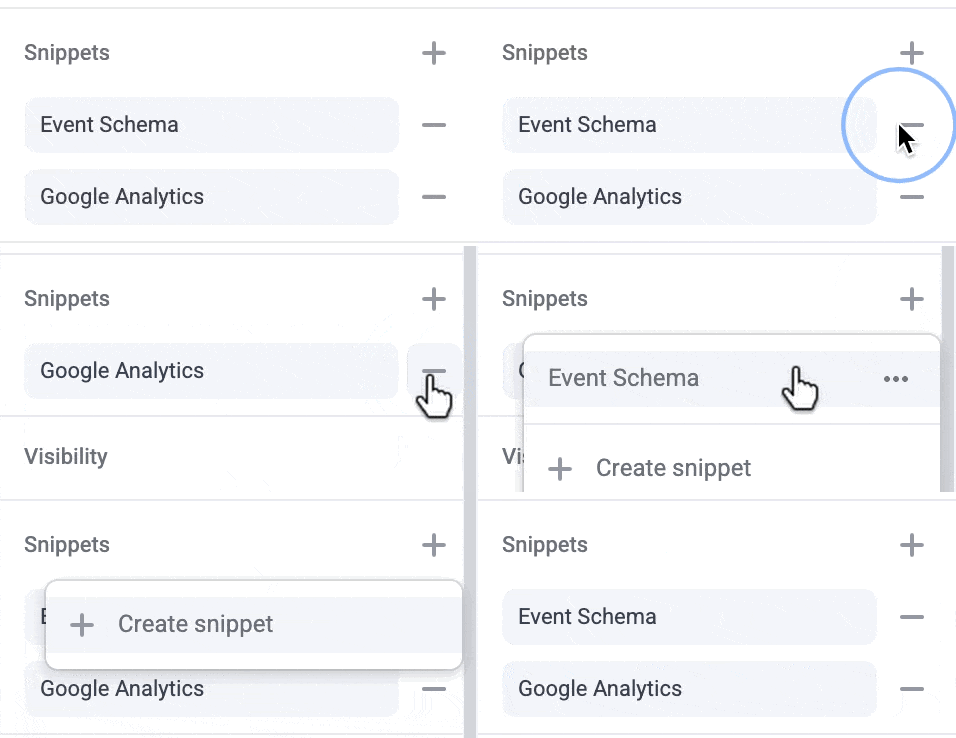
To create a new snippet, deselect all elements and click the Page tab in the right sidebar. Click the "+" icon in the "Snippets" panel, and select "Create snippet" in the menu.
Name your snippet, paste in your code, and add cleanup code if necessary. You can select if the code should be placed in the `` or end of the closing ``. If you're unsure which to choose, please check with the code's documentation. Lastly, select whether or not to automatically include this snippet when new pages are created.
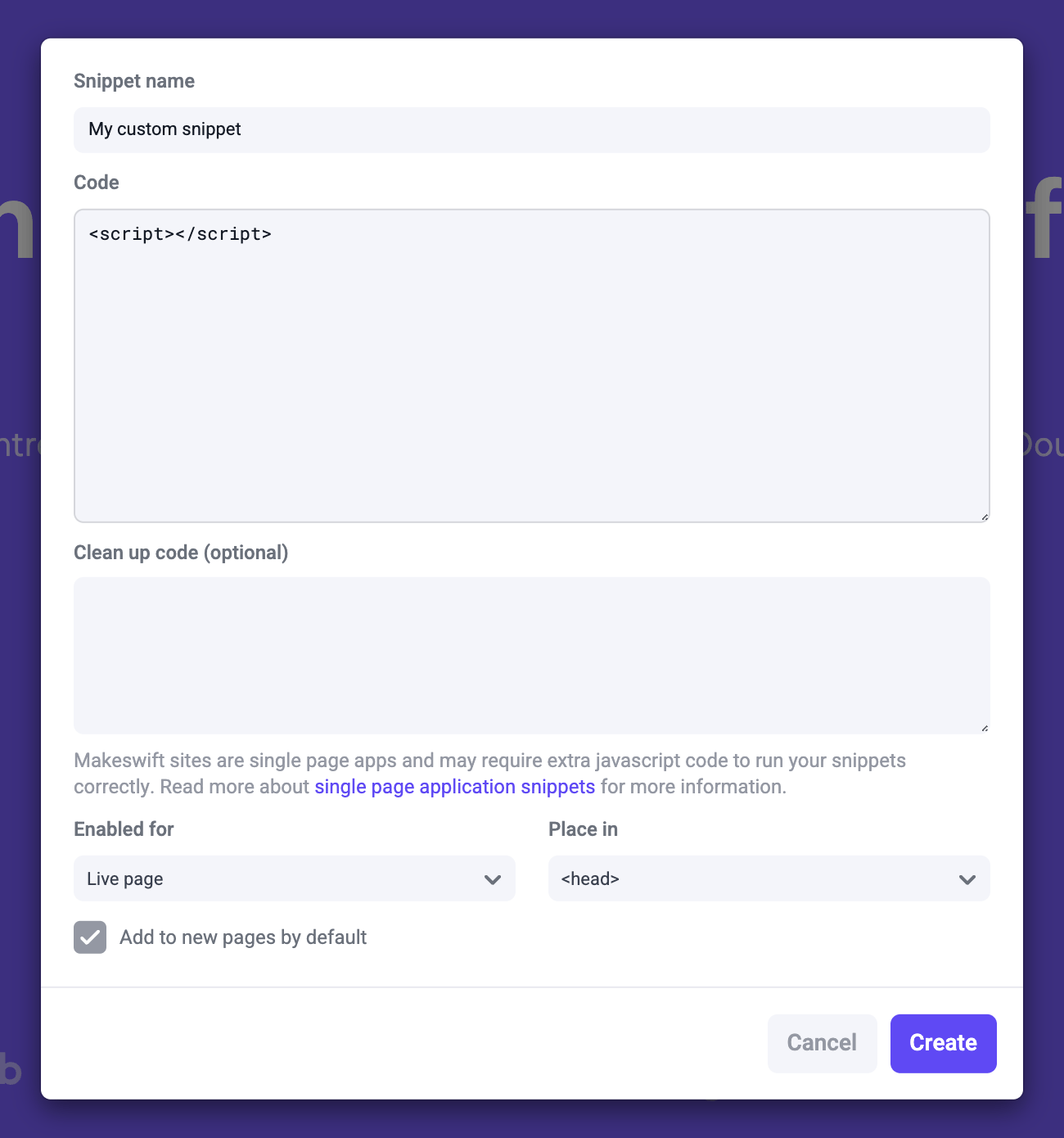 After clicking "Create" you'll be given the option of adding the new snippet to your current page or all pages in your site. This snippet will also appear in the add snippet menu for pages that don't already include it.
To remove a snippet from a page, click on the `—` found on each snippet row.
After clicking "Create" you'll be given the option of adding the new snippet to your current page or all pages in your site. This snippet will also appear in the add snippet menu for pages that don't already include it.
To remove a snippet from a page, click on the `—` found on each snippet row.
 ## Managing snippets
Opening a snippet's action menu will display options to edit the snippet or add it to all pages. When editing a snippet, saved changes will be applied to all pages using this snippet. Deleting a snippet will remove it from all pages in a site.
## Snippets and client-side routing
Makeswift sites are [Next.js](https://nextjs.org/) applications and feature client-side routing for blazing fast navigation throughout your site. Navigating between pages within the site does not cause a page refresh, which requires additional considerations for certain types of snippets.
Sometimes you want to be able to run a snippet in specific pages but not in others. For example, you might want a chat support widget on your marketing pages but not on your blog pages. Makeswift will automatically remove the relevant snippet HTML and CSS when moving from a page with a snippet to a page that doesn't have that snippet. But if the snippet ran a side effect with JavaScript (i.e., installing a chat support widget), then a clean up script will need to be provided (i.e., to uninstall the chat support widget).
Note, the clean up script is only needed when a snippet isn't used in all
pages and also has some sort of side effect that needs to be cleaned up.
## Clean up script example
Google Analytics [provides
instructions](https://developers.google.com/analytics/devguides/collection/analyticsjs/single-page-applications)
for measuring page activity in single page applications. Here's an example of
what that looks like in Makeswift.
### Snippet
```
```
### Clean up script
```
window['ga-disable-UA-XXXXX-Y'] = true;
window.history.pushState = originalPushState;
window.history.replaceState = originalReplaceState;
```
## Pro tips
Snippets can be configured to be automatically added to all new pages. To do so, check the box labeled "Add to new pages by default" when creating or editing a snippet. This is useful for snippets that should be included on every page, such as Google Analytics or Facebook pixels
## Managing snippets
Opening a snippet's action menu will display options to edit the snippet or add it to all pages. When editing a snippet, saved changes will be applied to all pages using this snippet. Deleting a snippet will remove it from all pages in a site.
## Snippets and client-side routing
Makeswift sites are [Next.js](https://nextjs.org/) applications and feature client-side routing for blazing fast navigation throughout your site. Navigating between pages within the site does not cause a page refresh, which requires additional considerations for certain types of snippets.
Sometimes you want to be able to run a snippet in specific pages but not in others. For example, you might want a chat support widget on your marketing pages but not on your blog pages. Makeswift will automatically remove the relevant snippet HTML and CSS when moving from a page with a snippet to a page that doesn't have that snippet. But if the snippet ran a side effect with JavaScript (i.e., installing a chat support widget), then a clean up script will need to be provided (i.e., to uninstall the chat support widget).
Note, the clean up script is only needed when a snippet isn't used in all
pages and also has some sort of side effect that needs to be cleaned up.
## Clean up script example
Google Analytics [provides
instructions](https://developers.google.com/analytics/devguides/collection/analyticsjs/single-page-applications)
for measuring page activity in single page applications. Here's an example of
what that looks like in Makeswift.
### Snippet
```
```
### Clean up script
```
window['ga-disable-UA-XXXXX-Y'] = true;
window.history.pushState = originalPushState;
window.history.replaceState = originalReplaceState;
```
## Pro tips
Snippets can be configured to be automatically added to all new pages. To do so, check the box labeled "Add to new pages by default" when creating or editing a snippet. This is useful for snippets that should be included on every page, such as Google Analytics or Facebook pixels
 ## Developer notes
When using a custom host, we suggest using `next/script` to add snippets directly to your codebase. Using `next/script` in Next.js is beneficial because it optimizes the loading of third-party scripts, ensuring they don't block the main thread and improving page performance. It also allows for fine-grained control over script loading behavior, such as lazy loading or loading only after the page has rendered, enhancing the overall user experience.
Any snippets that need to be maintained by non-developers should be added to
Makeswift as snippets. This allows for easy management and editing by
non-technical users.
## Developer notes
When using a custom host, we suggest using `next/script` to add snippets directly to your codebase. Using `next/script` in Next.js is beneficial because it optimizes the loading of third-party scripts, ensuring they don't block the main thread and improving page performance. It also allows for fine-grained control over script loading behavior, such as lazy loading or loading only after the page has rendered, enhancing the overall user experience.
Any snippets that need to be maintained by non-developers should be added to
Makeswift as snippets. This allows for easy management and editing by
non-technical users.