The feature is deeply integrated with Next.js’ internationalization
features.
Add locales in the Visual Builder
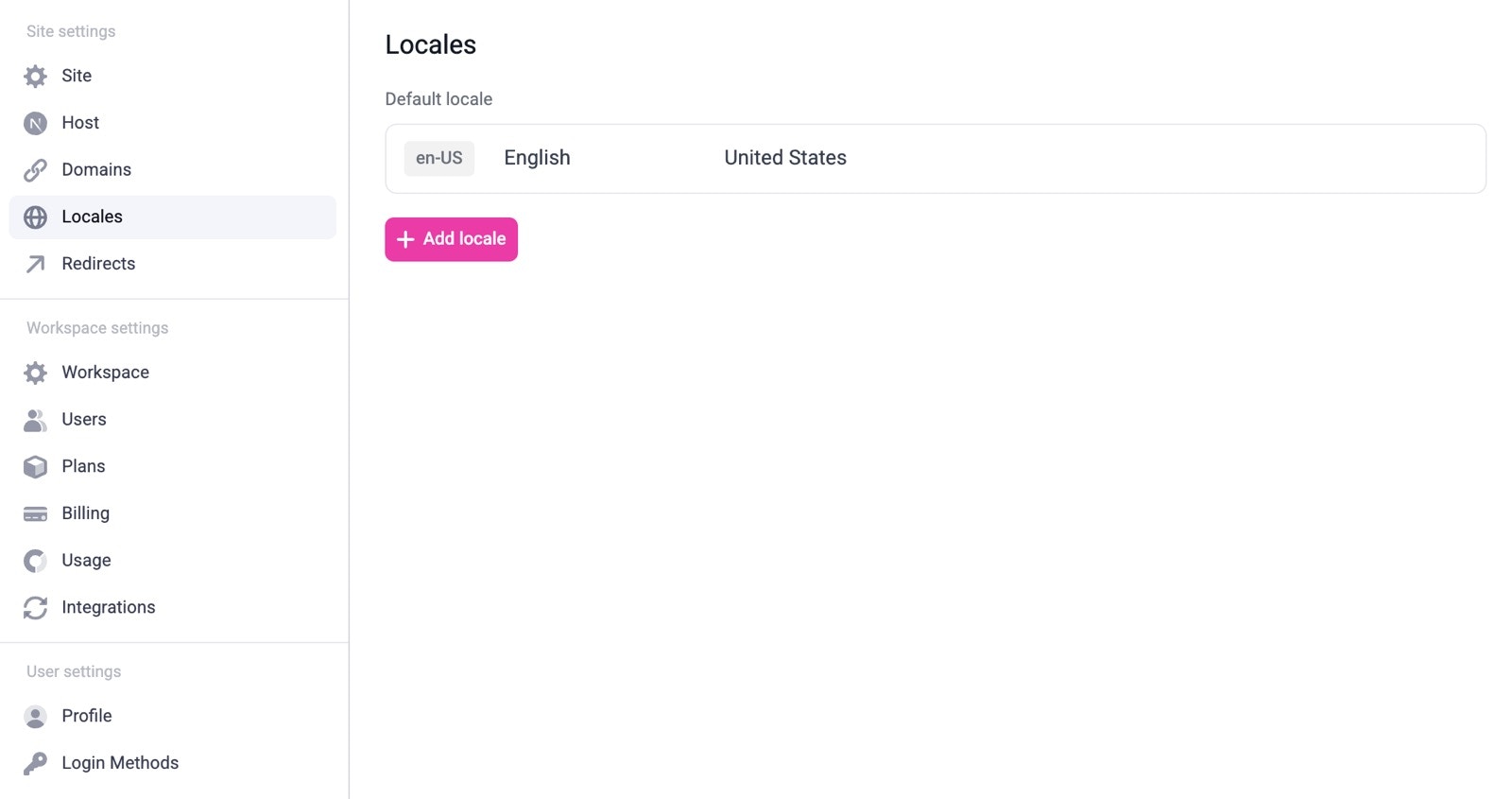
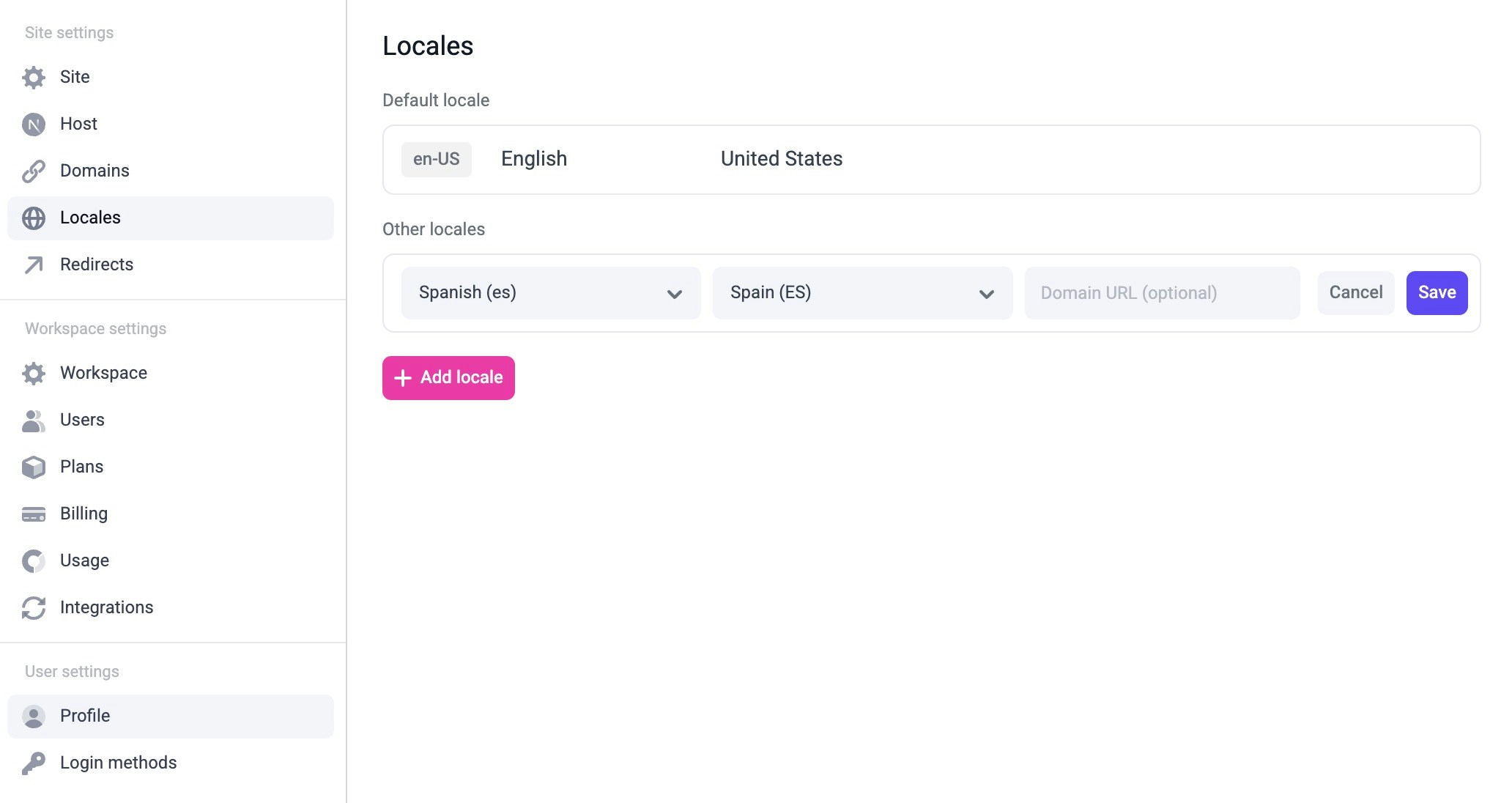
Open site settings and go to the Locales tab:The number of locales you have access to is dependent upon your
plan. Refer to the pricing
page for full details.
Configure locales in your Next.js config
The locales in your site settings in Makeswift need to match the locales configured innext.config.ts. Without matching these exactly, pages in the Visual Builder will not load properly.
To match the locales on the screenshot above, update next.config.ts to be like this:
next.config.ts, you also need to put your defaultLocale in locales.
In this example, that would be en-US.
Fetch snapshots by locale
Update your catch-all route to fetch the page snapshots by locale. This requires you to pass the locale fromgetStaticProps to getPageSnapshot. This code is usually located in [[...path]].tsx, but it might be different depending on your setup.
src/pages/[[...path]].tsx
<ReactRuntimeProvider> component by updating your _app.tsx like so.
src/pages/_app.tsx
Edit your localized pages
Once you’ve set everything up, you should be able to switch to the locale using the locale switcher in the Visual Builder.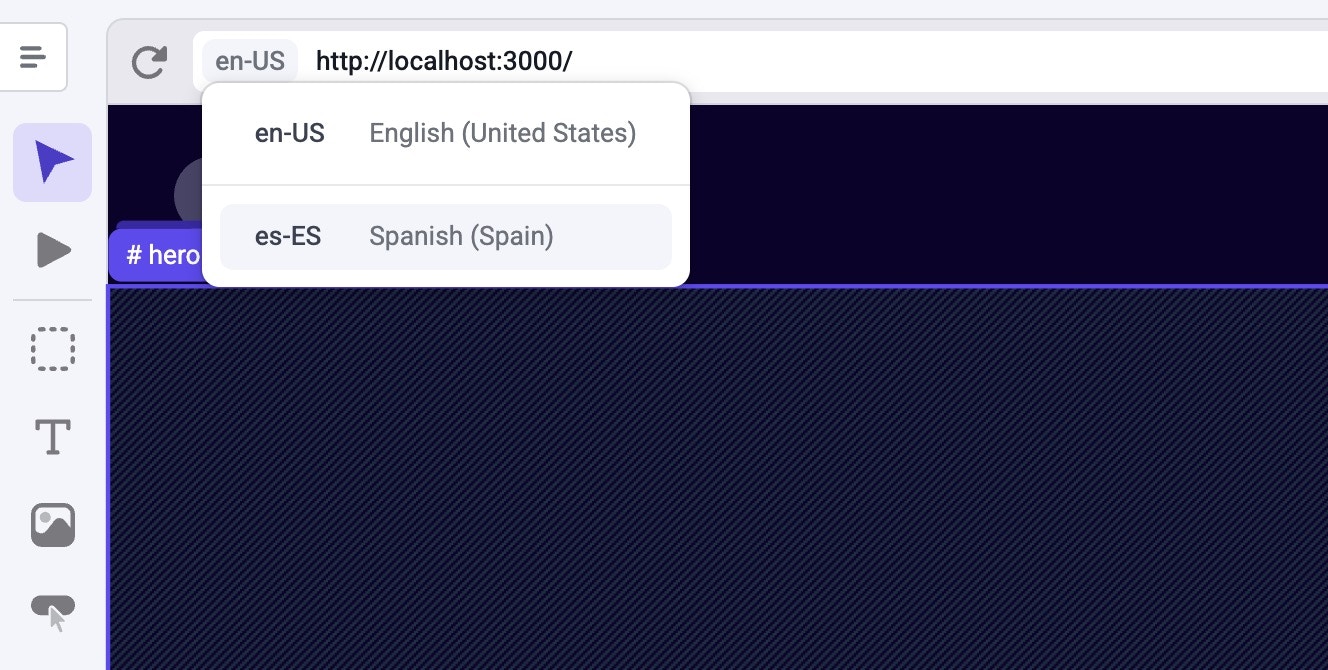
en-US to es-ES), you’ll notice a message that informs you that the localized page inherits from the default locale. To stop inheriting from the default locale and start customizing the content for the localized page, click the Edit for this locale button.
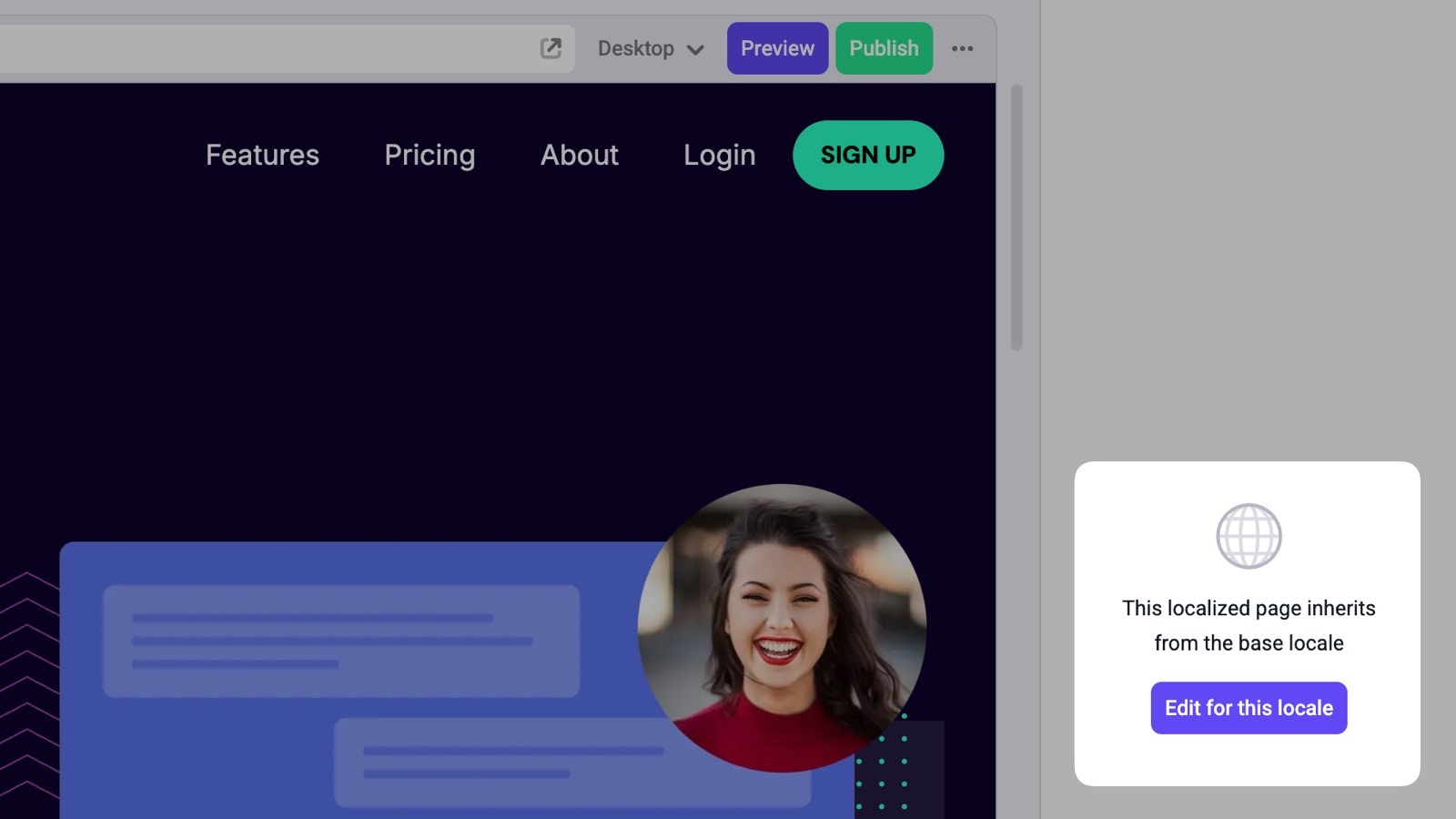
You can also customize the path for each page in each locale in the page’s
settings. For example, if you have a company page at
example.com/company,
you can create the Spanish version of the page at example.com/es/compania or
example.es/compania.Localized resources
When making changes on a different locale you can override any property, including the page’s pathname, metadata, and SEO tags.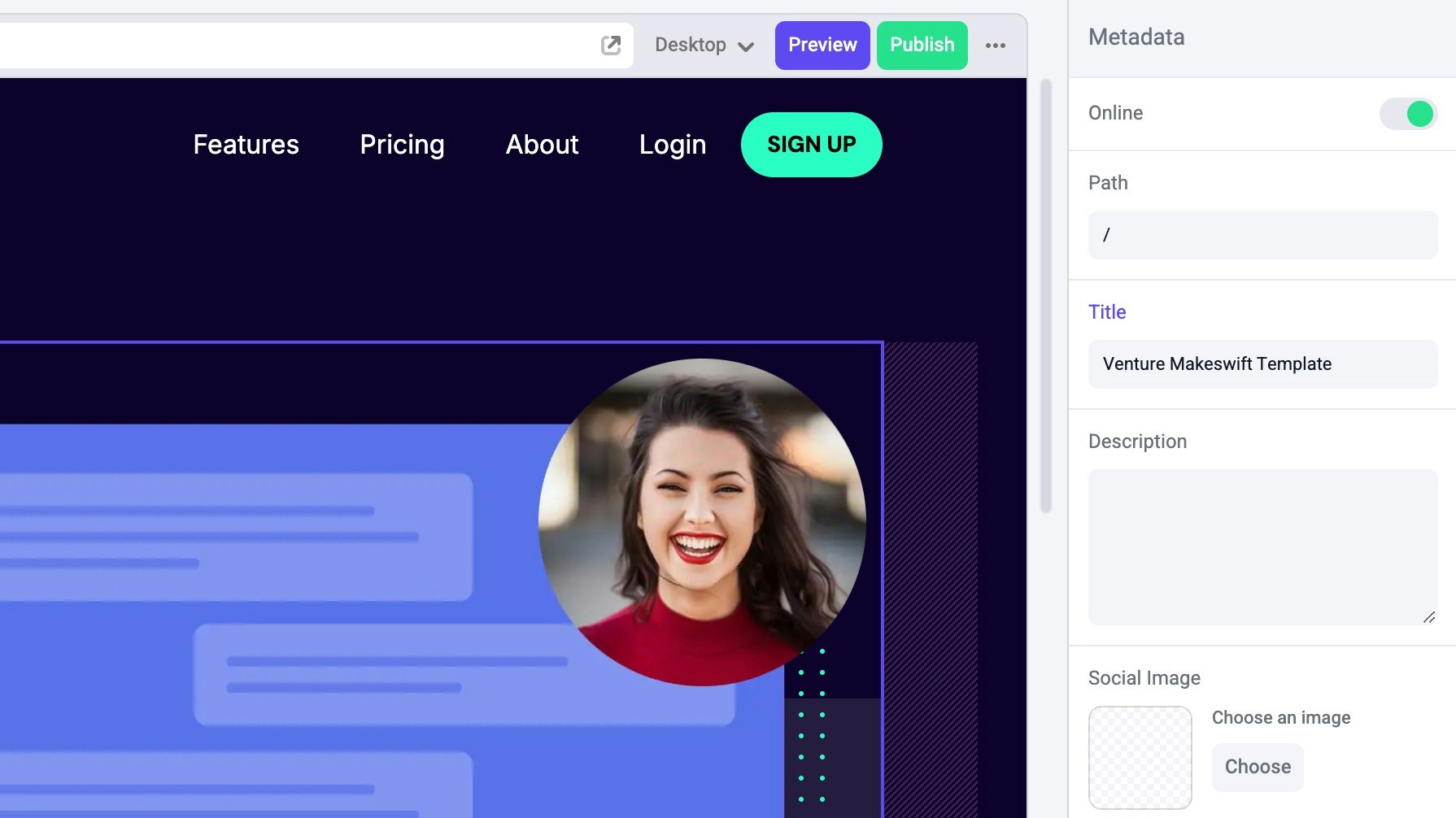
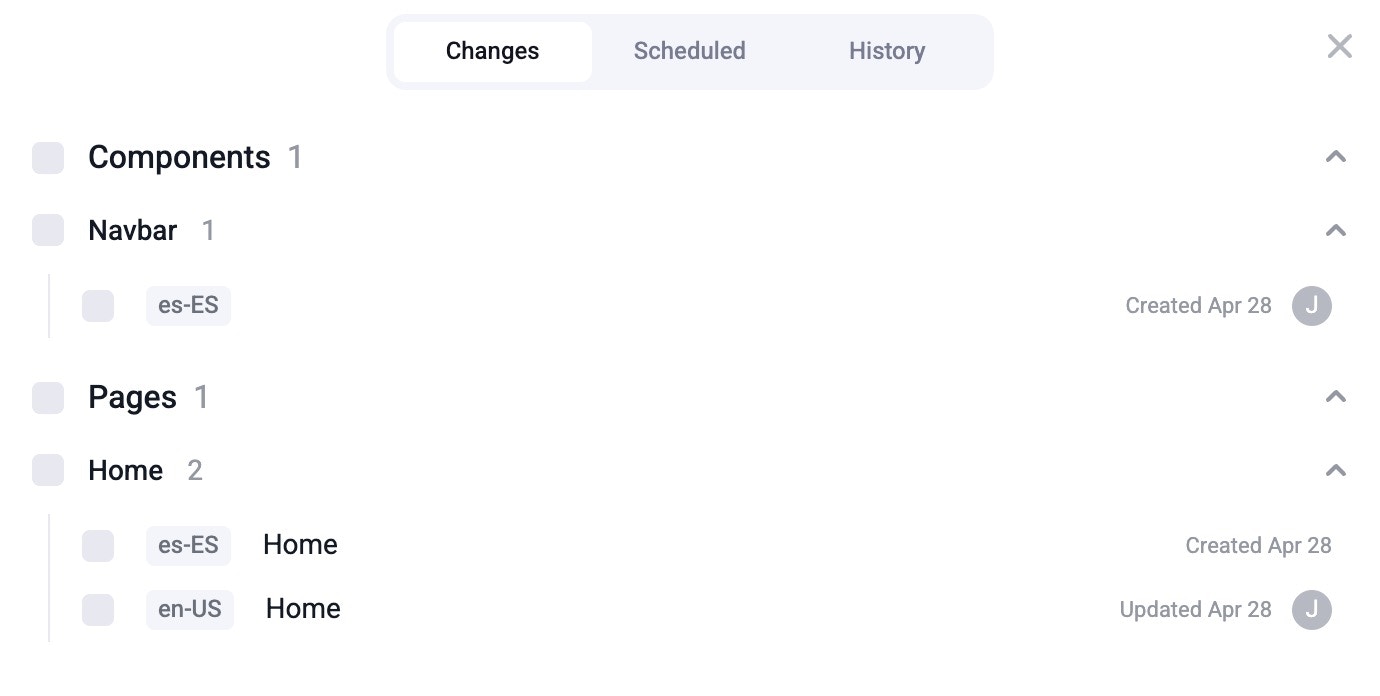
Publishing
Remember that localized content (pages, components, etc.) needs to be published just like any other resource. After you’re done making all of your changes, publish them for these changes to go live. In the publish dialog, you’ll be able to see the locale attached to each resource.